
Tracking software feedback status in Jira is the practice of routing every piece of user input through a defined workflow so your team always knows what stage each item is in, who owns it, and what happens next. Without this structure, feedback piles up in inboxes, gets duplicated in backlogs, and never closes the loop with the person who submitted it. Jira Service Management, the work item collector, and Jira automation rules are the three core tools that make feedback tracking reliable. Used together, they turn raw user input into visible, actionable work items that move through your project from submission to resolution.

What tools and Jira features are essential to track software feedback status?
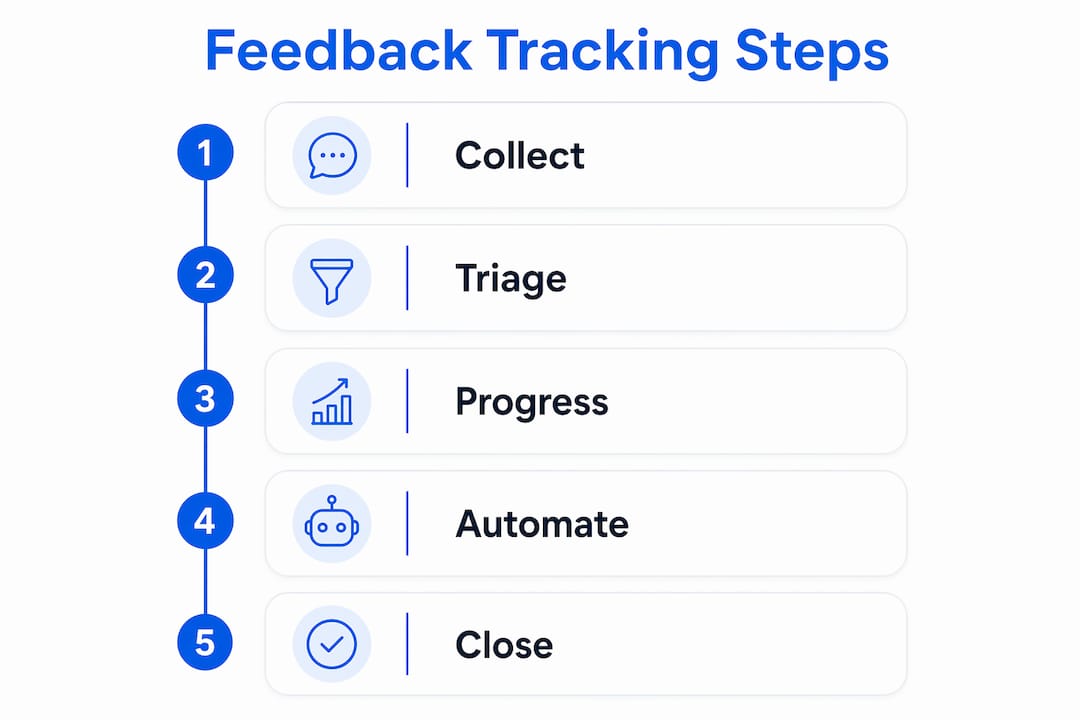
Jira Service Management is the foundation for any team that needs to monitor feedback in Jira at scale. It provides configurable workflows, status categories, and a customer portal that shows submitters where their request stands. The platform treats statuses as first-class controls, not just labels, which means every transition is trackable and reportable.
The three tools you need are:
- Jira Service Management workflows. These define the stages a feedback item passes through, from intake to resolution. Statuses are grouped into To Do, In Progress, and Done categories, giving you a consistent framework across all views and reports.
- The Jira work item collector. This embeds a feedback form directly on your website or app. It captures external feedback and automatically creates Jira issues, so nothing falls through the cracks between your product and your backlog.
- Jira automation rules. These handle status transitions, send reminders to customers waiting on responses, and close stale requests without manual intervention.
The table below compares these three tools by function, setup effort, and primary use case.
| Tool | Primary function | Setup effort | Best for |
|---|---|---|---|
| Jira Service Management workflows | Define and enforce feedback stages | Medium | Teams needing structured status progression |
| Work item collector | Capture external feedback via embedded forms | Low | Collecting feedback from websites or portals |
| Jira automation rules | Automate transitions, reminders, and closures | Medium | Reducing manual status management overhead |
Each tool solves a different part of the problem. Workflows give you structure. The collector gives you intake. Automation keeps everything moving without constant manual attention.
How to configure Jira workflows and statuses for feedback progression
Well-configured workflow status design is the single biggest factor in how clearly your team can see feedback progress. Poorly named statuses create confusion. Miscategorized statuses break reports. Getting this right at the start saves hours of cleanup later.
Follow these steps to configure your Jira workflow for feedback tracking:
- Define your statuses with clear, specific names. Avoid generic labels like “Open.” Use names like “Awaiting Review,” “In Development,” or “Waiting for Customer.” Each name should tell anyone reading it exactly what is happening with that item.
- Assign each status to the correct category. Jira groups statuses into To Do, In Progress, and Done. Assigning a status to the wrong category breaks time-tracking reports and automation triggers. “Waiting for Customer” belongs in In Progress, not To Do.
- Map internal statuses to customer portal statuses. Jira Service Management lets you map internal workflow statuses to simplified labels on the customer portal. For example, your internal “In Development” status can display as “In Progress” to the submitter, while “Resolved” maps to your internal “Done” category.
- Set transitions between statuses explicitly. Define which statuses can follow which. A feedback item should not be able to jump from “Submitted” directly to “Closed” without passing through a review stage. Explicit transitions prevent accidental or unauthorized status changes.
- Test the workflow with a real feedback item before going live. Walk a test issue through every status manually. Confirm that each transition fires correctly, that the customer portal shows the right label, and that automation rules trigger at the right points.
Pro Tip: Validate your request type status mappings before launch. Customers who see confusing portal statuses like “Reopened” or “Escalated” lose trust in the process. Map every internal status to a plain-language customer label, even if it means combining two internal stages into one portal label.
Atlassian recommends connecting feedback entries to Jira work items that move through defined statuses. This is what separates a real feedback system from a simple intake form. The status is the proof that something is happening.
How to collect external feedback into Jira and create tracked issues
The Jira work item collector is the most direct way to pull external feedback into your backlog without asking users to log in to Jira. It embeds a form on any webpage and creates a Jira issue the moment someone submits it.
Here is how to set it up correctly:
- Create a new collector in your Jira project settings. Go to Project Settings, select “Issue Collectors,” and click “Add Issue Collector.” Name it clearly so you can identify it in reports later.
- Choose the right work item type. Select the issue type that matches your feedback category. Bug reports, feature requests, and general feedback should each map to a different issue type so your workflow and automation rules can filter them correctly.
- Configure the reporter identity carefully. The collector offers two options: match the submitter’s email to a Jira account, or use a default reporter. Misconfigurations here are a common pitfall. If the submitter’s email does not match a Jira account and you have not set a default reporter with the right permissions, the issue gets created but cannot progress through the workflow due to permission errors.
- Embed the generated code snippet on your website. Jira provides a JavaScript snippet. Place it in your site’s footer or on a dedicated feedback page. The form appears as a button or inline widget, depending on your configuration.
- Review collector activity reports regularly. Jira shows submission counts and error rates per collector. If submissions drop suddenly, check whether a site update broke the snippet or whether a permission change blocked issue creation.
Key points to watch after launch:
- Confirm the default reporter account has “Create Issues” permission in the target project.
- Test submissions from a non-Jira user account to catch permission gaps before real users hit them.
- Use custom fields in the collector form to capture structured data like browser version, device type, or feature area. This data feeds directly into the Jira issue and speeds up triage.
Pro Tip: Set up a dedicated Jira project for raw collector submissions. Use automation to triage and move issues to the correct team project after review. This keeps your main backlog clean while still capturing everything.
How does Jira automation improve feedback status tracking?
Jira automation is what keeps feedback moving after it enters your system. Without it, items sit in “Waiting for Customer” indefinitely, SLAs drift, and teams lose visibility into which requests are genuinely stalled versus which are just slow.
The most effective automation pattern for Jira feedback tracking uses a custom date field to track when an issue entered the “Waiting for Customer” status. Adding a comment to a Jira issue counts as an update and resets time-in-status calculations. This means any automation based on “time since last update” will fire incorrectly after a team member adds a note. A dedicated “Waiting Since” date field, set at the moment of the status transition, stays stable regardless of comments.
Build these automation rules to manage feedback status reliably:
- Set the “Waiting Since” date field when an issue transitions to “Waiting for Customer.” Use a “When: Transition” trigger and a “Then: Edit fields” action to stamp the current date.
- Send a reminder after a set number of days. Use a scheduled automation that runs daily, checks whether the “Waiting Since” date is older than your threshold (for example, 5 days), and sends a comment or email to the customer asking for a response.
- Close stale requests automatically. If no response arrives after a second threshold (for example, 14 days), transition the issue to “Closed” and notify the customer. This keeps your backlog accurate and your SLA reports clean.
- Reopen issues if the customer replies after closure. Set a trigger on customer comment to reopen a closed issue and reset the “Waiting Since” field. This prevents feedback from being permanently lost after an auto-close.
Pro Tip: Schedule your reminder automations to run at a fixed time each day rather than triggering on issue events. Daily scheduled rules are more predictable and easier to audit than event-based rules that can fire multiple times on a busy day.
Automating customer reminders with a stable “Waiting Since” date field is the most reliable way to avoid automation drift. Teams that skip this step spend hours debugging why reminders fired too early or not at all.
Key Takeaways
Tracking software feedback status in Jira requires structured workflows, correct reporter configuration, and automation rules built on stable date fields rather than event-based triggers.
| Point | Details |
|---|---|
| Use status categories correctly | Assign every status to To Do, In Progress, or Done to keep reports and automation accurate. |
| Map portal statuses early | Configure customer-facing status labels before launch to avoid submitter confusion. |
| Fix reporter settings first | Misconfigured reporter identity in the work item collector blocks issue progression despite correct workflows. |
| Use a custom date field for automation | A “Waiting Since” field prevents comment-triggered resets that break reminder and closure rules. |
| Connect feedback to work items | Link every feedback entry to a Jira issue moving through a defined workflow to close the loop. |
The part most teams skip: closing the loop, not just opening it
Most teams spend their energy on intake. They embed the collector, configure the form, and feel like the system is working. Then they check back three months later and find 200 issues sitting in “Submitted” with no owner, no status update, and no response to the person who filed them.
The real challenge in Jira feedback tracking is not collection. It is progression. Closing every feedback loop means connecting each submission to a work item that actually moves through your workflow. That connection is what turns a feedback form into a feedback system.
The status mapping mistake I see most often is teams leaving internal statuses like “Escalated” or “Pending Engineering Review” visible on the customer portal. Those labels mean nothing to a user who just reported a bug. They create the impression that nothing is happening. Mapping every internal status to a plain-language customer label takes 20 minutes and prevents weeks of trust erosion.
The other underrated practice is linking feedback items to the actual development tickets they generate. When a bug report in Jira Service Management spawns a story in your engineering project, link the two. When the story closes, you can automate a status update back to the original feedback item. That is what a closed loop looks like. Without it, you are just collecting, not tracking.
— Marketing
Wezardapp takes feedback tracking further than Jira alone
Jira gives you the structure. Wezardapp gives you the speed and accuracy to fill it. Wezardapp is the only user acceptance testing tool that records your screen, transcribes the issue in real time, and uses AI to detect duplicate tickets before they reach your backlog.

Teams using Wezardapp skip the manual steps of writing up bug reports and checking for duplicates. Every session produces a structured Jira issue automatically, complete with screen recording, transcript, and metadata. If a duplicate already exists, Wezardapp flags it before it creates noise in your project. For teams managing UAT feedback in Jira, this means cleaner backlogs, faster triage, and status tracking that reflects reality from the first moment a bug is reported. If you want to see how acceptance criteria and feedback tracking connect, the guide on software acceptance criteria is a practical next read.
FAQ
What is Jira feedback tracking?
Jira feedback tracking is the practice of capturing user input as Jira issues and moving those issues through a defined workflow with clear statuses. It gives teams visibility into every feedback item from submission to resolution.
How does the Jira work item collector work?
The work item collector embeds a feedback form on your website via a JavaScript snippet and automatically creates a Jira issue for each submission. Reporter identity and permissions must be configured correctly for issues to progress through the workflow.
Why do my Jira automation reminders fire at the wrong time?
Comments on Jira issues reset the “time since last update” calculation, which causes event-based automation rules to trigger incorrectly. Use a custom “Waiting Since” date field set at status transition to base reminders on a stable timestamp instead.
How do I show customers the right status on the Jira portal?
Use request type status mappings in Jira Service Management to translate internal workflow statuses into plain-language labels on the customer portal. Map every internal status, including edge cases like “Escalated,” to a customer-readable equivalent before going live.
Can Jira track feedback from users who don’t have a Jira account?
Yes. The work item collector creates issues on behalf of a default reporter, so external users do not need a Jira account to submit feedback. The default reporter account must have the correct project permissions for the issue to be created and tracked properly.