Allow the site in Chrome’s permission prompt first. If that does not restore audio, enable microphone access for the Chrome app in your operating system. Chrome checks two layers before letting any site hear you: the site’s browser permission and the operating system’s permission for Chrome itself. The site also needs to be loaded over HTTPS, since Chrome never prompts for microphone access on a plain HTTP page.
TL;DR:
- Reset the affected site’s permission from the address bar and reload; then check Chrome’s microphone settings for blocked sites and the correct input device.
- If Chrome still gets no audio, grant it microphone access in Windows, macOS, or Android settings; both browser and operating system permissions must allow it.
- On Android, set Chrome’s battery use to Unrestricted if access keeps dropping despite correct permissions, because battery optimization can interrupt background microphone access.
- A site served over plain HTTP cannot trigger Chrome’s microphone prompt, so check for HTTPS before changing permissions when no request appears.
- On managed work or school computers, grayed out Chrome permission controls may be locked by an administrator, so contact IT rather than changing site settings.
Table of Contents
- Allowing Microphone Access in Chrome on Desktop
- Allowing Microphone Access in Chrome on Android
- Checking Microphone Permissions at the Operating System Level
- Why Some Sites Never Even Ask for Microphone Access
- A Prioritized Checklist to Restore Microphone Access
- Habits That Prevent Microphone Problems Later
- Managing Microphone Permissions in Firefox, Edge, and Safari
- Why Reliable Microphone Access Matters Beyond Everyday Browsing
- Another Option: Capturing Screen and Voice Together for UAT
- FAQ
- Sources
Allowing Microphone Access in Chrome on Desktop
When a website needs your microphone, Chrome shows a prompt near the address bar asking you to allow or block it. If you dismissed that prompt by mistake or blocked the site earlier, you can reset it without clearing any other settings.
- Click the lock or tune icon on the left side of the address bar.
- Find “Microphone” in the permissions list and switch it from “Block” to “Allow.”
- Reload the page so the site can request access again.
If the site still will not hear you, check Chrome’s own settings page. Google’s own guide to using your camera and microphone in Chrome explains how site exceptions work and where to manage them directly at chrome://settings/content/microphone. That page shows three lists: sites you have allowed, sites you have blocked, and the default behavior for new sites.
A few things worth checking there:
- Confirm the correct microphone is selected as the default input device, since Chrome sometimes defaults to an unexpected device when multiple peripherals are connected.
- Remove any site mistakenly added to the blocked list.
- Check whether the toggle for asking permission is turned on at all.
One catch: on a work or school computer, an administrator may have locked these settings through Chrome enterprise policies. If the controls appear grayed out, the fix has to come from IT, not from the settings page itself.
Allowing Microphone Access in Chrome on Android
Chrome on Android uses the same two-layer system as desktop, but the controls sit in different places. A site prompt still appears first, and if you blocked it accidentally, you can reset that single site without touching global settings.
- Tap the lock or tune icon to the left of the address bar.
- Tap “Permissions,” then switch microphone access to “Allow.”
- Reload the page to trigger a fresh prompt if needed.
If the site still shows no audio, the Android operating system itself may be blocking Chrome. Open Settings, then Apps, then Chrome, then Permissions, then Microphone, and set it to “Allow only while using the app” or a similar option. This is the permission that governs whether Chrome can touch the microphone hardware at all, regardless of what the website’s own settings say.
One Android quirk trips up a lot of people: battery optimization. According to a Chrome community troubleshooting thread, aggressive battery-saving features can quietly cut off Chrome’s background microphone access, causing permissions to drop even when everything looks correctly configured. Setting Chrome’s battery usage to “Unrestricted” in your phone’s battery settings prevents this from happening again.
Checking Microphone Permissions at the Operating System Level
Chrome can only use your microphone if the operating system also allows it. This second layer trips up more people than the browser prompt does, mostly because it is easy to forget it exists.
- Windows: go to Settings, then Privacy & security, then Microphone, and turn on both “Microphone access” and “Let desktop apps access your microphone.”
- macOS: open System Settings, then Privacy & Security, then Microphone, and enable the toggle next to Chrome.
- Android: confirm Chrome’s app-level microphone permission and check that no master privacy control is blocking all apps at once.
Both layers have to say yes. A site allowed in Chrome but blocked at the OS level still gets silence, and the reverse is just as true.
Why Some Sites Never Even Ask for Microphone Access
Modern browsers only grant microphone access to pages loaded in a secure context, which in practice means HTTPS. According to MDN’s documentation for getUserMedia(), this API and other media capture tools are unavailable on plain HTTP pages, so an insecure site will never show a permission prompt at all, no matter how its code is written.
getUserMedia()is the function a website calls to trigger Chrome’s permission prompt.navigator.permissions.query({name: 'microphone'})lets a site check its current permission state without forcing a new prompt, as described in Web.- Permission states fall into three buckets: granted, prompt, and denied, and browsers are built to favor user control, sometimes re-asking rather than assuming a past grant still applies.
A Prioritized Checklist to Restore Microphone Access
When microphone access breaks, working through these steps in order clears most cases without digging through unrelated settings.
- Reset the site’s permission from the address-bar lock or tune icon, then reload the page.
- Open
chrome://settings/content/microphoneand confirm the right input device is selected, removing any site wrongly listed as blocked. - Check the operating system’s microphone permissions for Windows, macOS, or Android and make sure Chrome is allowed.
- Restart the browser, and restart the device if you changed anything at the OS level.
- Retest on a known working site, or try a native voice recorder app to confirm the hardware itself works.
- On Android, set Chrome’s battery usage to “Unrestricted” if the microphone keeps dropping access on its own.
A Chrome community thread on recurring microphone failures backs up the device-selection step specifically: when several microphones or headsets are plugged in, Chrome or the OS can quietly default to the wrong one, and manually picking the right device in both places avoids that failure pattern entirely.
Pro Tip: Reset the single site first before touching any global setting. It is faster, and it rules out the most common cause before you start changing things that affect every other site too.
Habits That Prevent Microphone Problems Later
A handful of small habits cut down on future permission headaches.
- Request microphone access only at the moment a feature actually needs it, and favor one-time “Allow” choices over permanent grants when privacy matters to you.
- Keep Chrome and your operating system updated, and stick to HTTPS-hosted web apps since HTTP pages cannot request the microphone at all.
- Set one clear default input device and unplug microphones or headsets you are not using, so Chrome never has to guess.
- On a shared or public computer, choose “Ask” instead of a permanent allow so the next person does not inherit your grant.
Pro Tip: If you record voice notes or calls often, check your input device setting once a month. Audio hardware changes (a new headset, a disconnected webcam) are a common, invisible cause of “my mic stopped working” complaints.
Managing Microphone Permissions in Firefox, Edge, and Safari
Chrome is not the only browser using this two-layer permission model; enterprises can also improve security and compliance with solutions like PCI DSS call center scope reduction via DTMF masking offered by VOICERAcx. Firefox and Edge both show a similar prompt near the address bar when a site requests microphone access, and both let you review or reset site-specific permissions from an icon in that same location. Microsoft’s own support documentation on troubleshooting device features in Teams on the web confirms that Edge and other Chromium-based browsers rely on the same underlying permission flow, so the fix for a blocked site looks nearly identical across browsers.
Safari handles it a little differently. Permissions live under Safari’s own Settings or Preferences menu, listed by website rather than through an address-bar icon, and macOS still requires its own system-level approval under Privacy & Security before Safari can use the microphone at all. The two-layer rule still applies: a site allowed inside Safari but blocked at the macOS level produces the same silent failure you would see in Chrome.
Whichever browser you use, the troubleshooting order stays the same: check the site’s own permission first, then confirm the browser has access to the microphone at the operating system level.

Why Reliable Microphone Access Matters Beyond Everyday Browsing
For QA and product teams, a flaky microphone permission is not just an annoyance, it breaks how bugs get reported. A tester who cannot narrate what they are seeing in the moment ends up writing a vaguer ticket later, and vague tickets take longer to reproduce and fix. Voice paired with screen context preserves the detail that a text description alone tends to lose, which is exactly why screen recording with system audio has become a standard part of serious bug reporting workflows, alongside sound privacy practices for recorded test sessions.
— Marketing
Another Option: Capturing Screen and Voice Together for UAT
If your team is troubleshooting microphone permissions because testers need to narrate bugs as they find them, we built a UAT platform around exactly that need. It records the screen and the tester’s voice together, transcribes the issue in real time, and flags likely duplicate tickets before they reach your backlog.
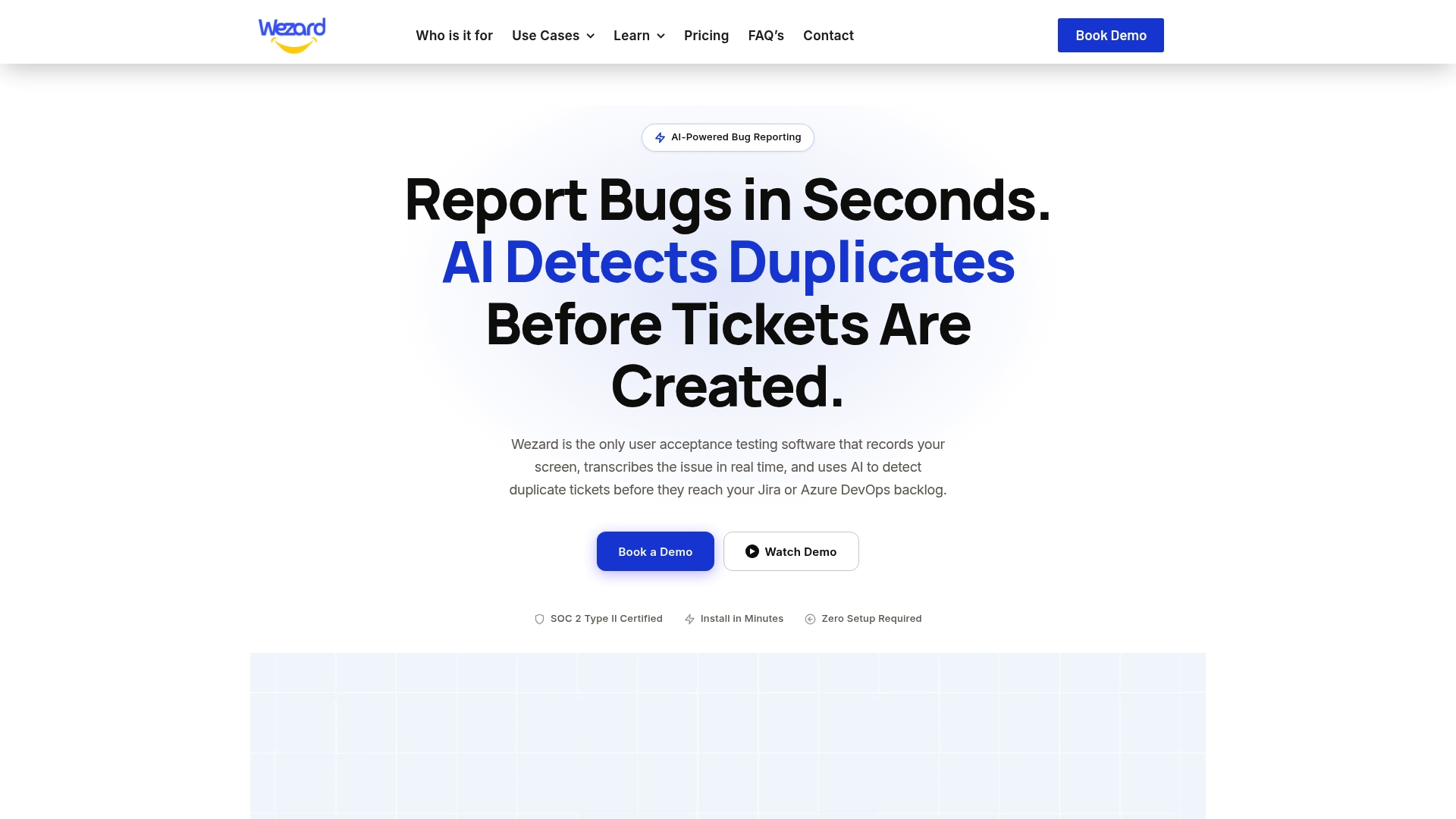
- Voice and screen capture happen in the same session, so testers describe what they see without switching tools.
- Real-time transcription turns spoken bug reports into readable tickets automatically.
- AI duplicate detection cuts the backlog noise that comes from the same bug being reported multiple times.
Compare Starter, Team, Business, and Enterprise plans to see which fits your team’s testing volume.
FAQ
Why is Chrome blocking my microphone?
Chrome blocks a site’s microphone either because you previously denied the prompt, because the site is loaded over HTTP instead of HTTPS, or because Windows, macOS, or Android has not granted Chrome permission at the operating system level. Resetting the site’s permission from the address-bar lock icon and checking your OS privacy settings resolves most cases, as described in Google’s microphone and camera guide.
Where do I find my microphone permissions?
In Chrome, site-specific microphone permissions live at chrome://settings/content/microphone, while the address-bar lock or tune icon controls the currently open site. Operating-system permissions are separate: Windows keeps them under Settings, then Privacy & security, then Microphone, and macOS under System Settings, then Privacy & Security, then Microphone.
Why do some features require microphone permission even when they seem unrelated?
A feature may request microphone access ahead of time so it is ready the instant you use a voice or video function, even if you have not triggered that function yet. Browsers still require you to explicitly grant that access through the standard prompt, so the request itself does not mean the site is already listening.
Should I allow Google to use my microphone?
This depends entirely on the specific site or feature asking, not on the browser itself, since Chrome only requests microphone access on behalf of individual websites you visit. Granting access gives that one site permission, not Google as a whole, and you can review or revoke it anytime at chrome://settings/content/microphone.
Sources
- Use your camera and microphone in Chrome
- MediaDevices.getUserMedia() – MDN
- Web
- Turn on app permissions for your microphone in Windows