
Effective Azure DevOps bug reporting means capturing defects in Azure Boards with the right fields, routing them through a defined triage process, and linking them to the builds and commits that caused them. Done well, it keeps your backlog clean and your team focused on the bugs that actually matter. Here is what that looks like in practice:
- Track bugs as requirements or tasks in Azure Boards depending on whether your team prioritizes backlog ranking or time tracking.
- Fill required fields on every bug: reproduction steps, system info, severity, priority, and acceptance criteria.
- Capture bugs directly during UAT using the Test & Feedback extension, which attaches screenshots, notes, and video automatically.
- Follow workflow states (New, Approved, Committed, Done) so every bug has a clear owner and status at all times.
- Tag bugs by component or module to filter, report, and support risk-based testing across sprints.
- Link bug work items to CI/CD artifacts — builds, releases, commits, and pull requests — for full traceability.
How to use Azure Boards for bug tracking and management
Azure Boards gives teams two distinct ways to track bugs, and the choice shapes how your backlog looks and behaves.
Choosing between requirements and tasks
- Track bugs as requirements when your team uses the product backlog to prioritize work. Bugs appear alongside user stories, show up in Velocity charts and Cumulative Flow Diagrams, and can be dragged into sprint planning via the Planning pane.
- Track bugs as tasks when your team tracks hours and wants bugs linked directly to user stories as child items. Bugs appear on sprint backlogs and Taskboards but not on Delivery Plans.
- Manage bugs via queries only if you prefer to keep backlogs clean and handle defects separately from requirements.
To set the option, go to Board settings > Working with bugs and save your preference. Only team administrators or Project Administrators can change this setting.
Creating and editing bug work items
A well-written bug work item removes all ambiguity for the developer picking it up. Required fields include:
- Repro Steps: Every action taken to reproduce the issue, plus expected versus actual behavior.
- System Info: Environment details, error logs, solution version, and configuration.
- Acceptance Criteria: The conditions that must be met before the bug can be closed.
- Priority and Severity: Separate ratings that together determine where the bug lands in the queue.
Once created, link the bug to the relevant user story using a Parent-Child or Related link type. Bug work items can also link to builds, releases, commits, and pull requests, giving developers the full context of what changed and when.
Monitoring bugs with queries and dashboards
Saved queries are the fastest way to stay on top of active defects. Useful query filters include active bugs by priority (State <> Done), in-progress bugs (State = Committed), bugs tagged for a target release, and bugs opened in the last three weeks (Created Date > @Today-21). Add these as charts to your team dashboard so bug status is visible without opening a separate report. Analytics views in Azure DevOps also offer prebuilt filters covering the last 30 days, last 26 weeks, and full history by month.
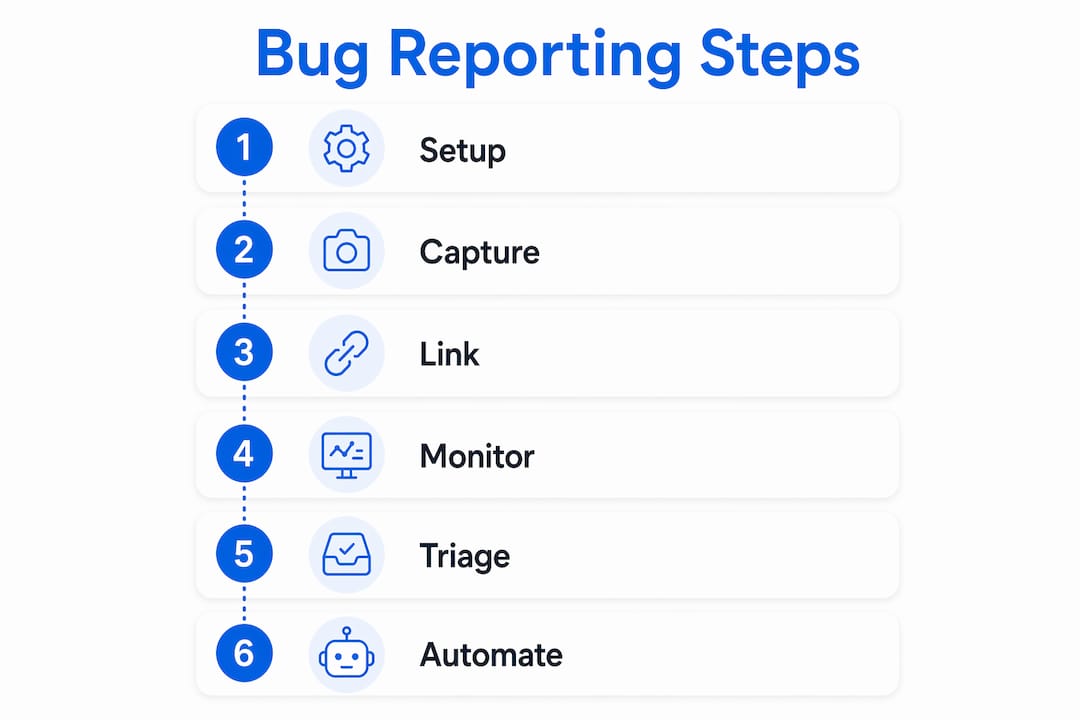
How does the Test & Feedback extension capture bugs during testing?
The Test & Feedback extension is the fastest path from a discovered defect to a filed ticket during exploratory or user acceptance testing.
- Install and connect: Add the extension to your browser, open it, and select Connected mode. Point it at your Azure DevOps project. Users with Basic access can run full exploratory sessions; Stakeholder access covers feedback responses.
- Capture evidence as you test: When you find a bug, take a screenshot of any screen area, add typed notes, or record a video of the interaction. The extension automatically builds an image action log of every mouse click, keyboard event, and touch gesture leading up to the issue.
- File the bug: When you create the bug, the form pre-populates with all captured screenshots, notes, video, and page load timing data. Add a title and any additional description, then save.
- Duplicate detection: As you type the bug title, the extension searches for existing bugs by keyword match and surfaces similar tickets. You can add your findings to an existing bug instead of creating a duplicate.
- Add to an existing bug: Select the matching bug from the results list, choose Edit, and the extension appends your screenshots, notes, and video to that ticket automatically.
- Review session results: All filed bugs, tasks, and test cases appear in the “Recent exploratory sessions” page in Azure Test Plans, giving the team a chronological record of every testing session.
Pro Tip: Before starting a UAT session, search Azure Boards for open bugs in the area you are about to test. Knowing what is already logged prevents you from spending time filing tickets that already exist, and it gives you context on known issues that might affect your test path.
What makes a bug triage meeting actually work?
Bug triage is a structured team activity, not a solo task. Triage meetings require the right people in the room: the Product Owner to approve and prioritize, technical leads to assess complexity and risk, and business analysts to clarify requirements and impact.
- Keep meetings short and regular. Weekly triage sessions of 15 minutes or less keep the team aligned on bug status and priorities without consuming sprint capacity. Deeper technical discussions belong in a separate meeting.
- Prioritize by severity and project risk. A bug that crashes the checkout flow on every browser is not the same as one that misaligns a tooltip on a rarely visited settings page. Rank accordingly.
- Define clear ownership. The Product Owner approves new bugs and moves them to Approved. The Bug Manager (or tech lead) assigns Committed bugs to developers. Developers update status as they work.
- Use queries to surface stale bugs. Filter for bugs that have not been updated in more than 30 days. Stale bugs either need a decision or should be closed as won’t fix.
- Keep workflow states simple. Six to eight clearly defined states reduce confusion and speed transitions. Over-engineering a workflow with a dozen states creates bottlenecks and ambiguity about where a bug actually stands.
- Tag bugs by component or module. Component tagging lets you build defect density reports by module, which directly informs where to focus test effort in the next sprint.
Pro Tip: Set up a saved Azure Boards filter showing bugs assigned to you in Fixed status. Checking this filter at the start of each day keeps verification cycles moving and prevents fixed bugs from sitting idle while developers wait for sign-off.
How AI-powered tools improve Azure DevOps bug reporting
Manual bug reporting has a ceiling. Testers miss duplicates, descriptions vary in quality, and triaging a backlog of poorly written tickets drains time that should go to testing. AI-powered tools address each of these gaps directly.

Wezardapp is built specifically for this problem. It records your screen during a test session, transcribes the issue in real time, and uses AI to detect duplicate tickets before they ever reach your Azure DevOps backlog. The result is a cleaner backlog, faster triage, and bug reports that arrive with consistent structure every time.
Key benefits for QA teams using Azure DevOps:
- Real-time transcription captures what the tester observed without relying on memory or manual note-taking after the session ends.
- Pre-submission duplicate detection prevents the backlog bloat that makes triage meetings longer than they need to be.
- Consistent ticket structure means every bug that reaches Azure Boards has the same fields filled in the same way, regardless of which tester filed it. Teams looking to standardize bug reporting across multiple testers will find this particularly useful.
- Direct Azure DevOps sync pushes tickets into the right project and area path automatically, so testers stay in their testing flow rather than switching between tools.
For teams running UAT alongside system testing, Wezardapp’s Azure DevOps integration handles the handoff between what testers find and what developers see in the backlog.
Wezardapp cuts the manual work out of Azure DevOps bug reporting
Every bug your testers file manually is a bug that could arrive with missing fields, a duplicate ticket number, or a vague description that sends developers back to ask questions. Wezardapp fixes that at the source.
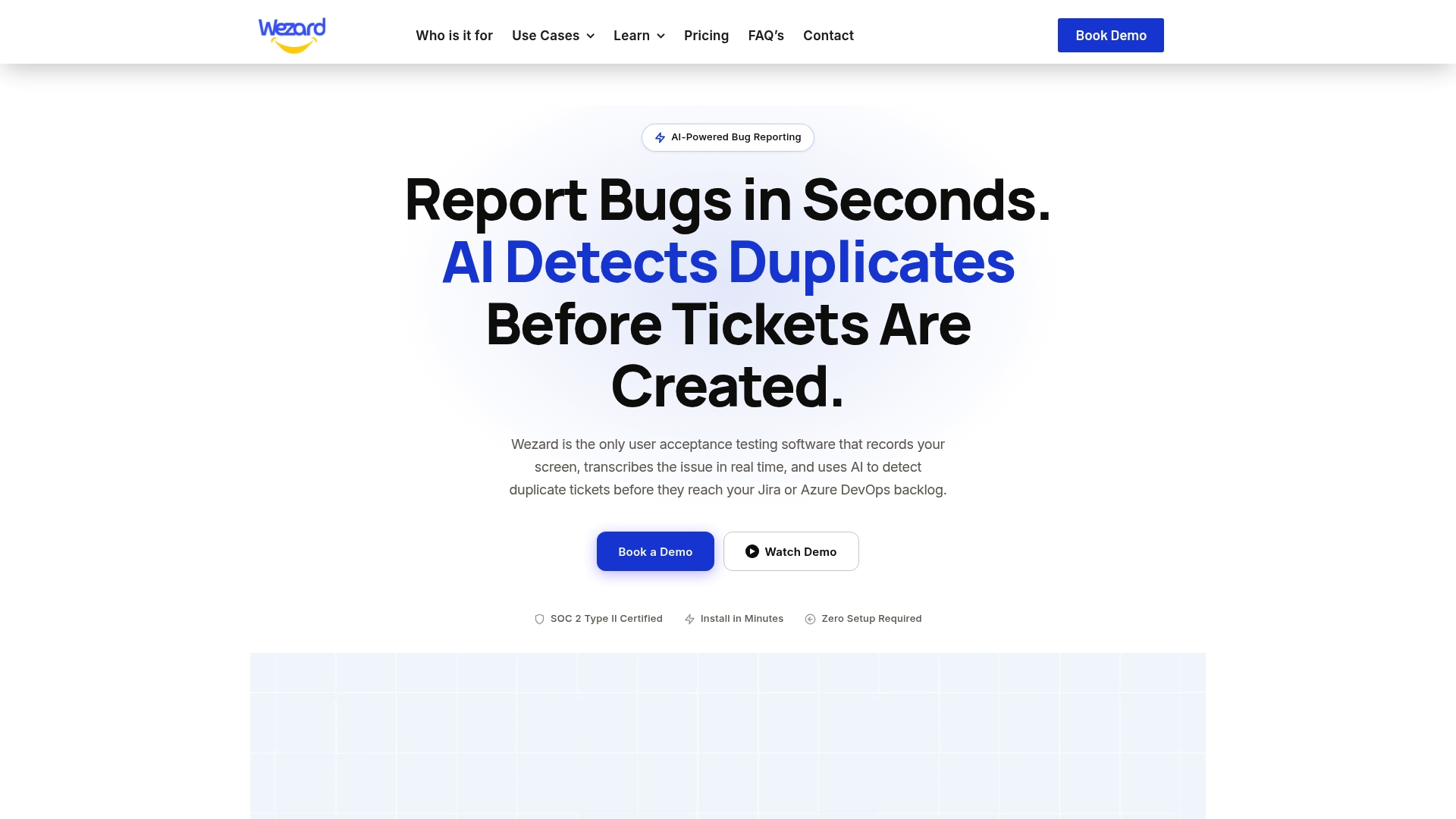
Wezardapp records the screen, transcribes the issue in real time, and runs AI duplicate detection before the ticket hits your Azure DevOps backlog. Your testers stay focused on testing. Your developers get complete, unique, consistently structured bug reports. Your triage meetings get shorter because the backlog is already clean when you walk in.
It fits directly into UAT testing workflows and syncs to Azure DevOps automatically, with no manual copy-paste between tools. If you want to see what a clean bug backlog actually looks like, start a free trial at wezardapp.com/azure-integration.
Key Takeaways
Effective Azure DevOps bug reporting requires choosing the right tracking mode in Azure Boards, capturing complete bug data during testing, and running structured triage with clear ownership.
| Point | Details |
|---|---|
| Choose the right tracking mode | Track bugs as requirements for backlog prioritization, or as tasks when your team tracks hours. |
| Fill required fields every time | Every bug needs reproduction steps, system info, severity, priority, and acceptance criteria to be actionable. |
| Use Test & Feedback for UAT | The extension captures screenshots, video, and action logs, and checks for duplicate bugs by keyword before you file. |
| Keep triage workflows simple | Six to eight workflow states reduce confusion; weekly 15-minute triage meetings keep the backlog current. |
| Wezardapp for AI-powered reporting | Wezardapp records sessions, transcribes issues, and detects duplicates before tickets reach your Azure DevOps backlog. |