
Yes, Jira can run a full user acceptance testing cycle on its own. You configure a handful of custom issue types, a dedicated set of statuses, and a filtered board, and you can manage test execution, defect tracking, and sign-off with zero add-ons. Start by deciding whether UAT lives in its own project or as a board inside your existing one.
TL;DR:
- Teams can manage full UAT cycles within Jira by creating custom issue types, workflows, filters, and dashboards without relying on add-ons, but it requires careful setup.
- Proper role separation, with restrictions on approval transitions and control over testing and defect logging, is critical to maintaining the integrity of the process.
- Automations like auto-assignments, notifications for critical defects, and escalation rules streamline testing and reduce manual oversight.
- Metrics such as pass/fail rates, defect severity, and cycle time are essential to assess release readiness, with a dedicated sign-off issue simplifying retrospectives.
- External testers and complex defect management may require specialized tools, such as AI-powered feedback capture, to handle unstructured reports and prevent backlog clutter.
Table of Contents
- What Does a Jira UAT Workflow Actually Look Like?
- How Do You Set Up UAT Issue Types and Workflows in Jira?
- Boards, Filters, and Dashboards for UAT Visibility
- Who Should Be Able to Move and Approve UAT Statuses?
- How Should Defects Get Logged and Linked During UAT?
- Automation Recipes and JQL Snippets That Speed UAT Execution
- What Metrics Prove a Release Is Ready to Ship?
- When Does Jira Configuration Stop Being Enough?
- What We’ve Learned Running UAT Inside Jira
- Ready to Cut UAT Triage Time With Wezardapp?
What Does a Jira UAT Workflow Actually Look Like?
A working jira uat workflow rests on six moving parts: custom issue types for test cases, a workflow with UAT-specific statuses, a board that filters to just those issues, a few custom fields, some light automation, and a reporting view someone actually checks before sign-off. None of this ships out of the box. Jira has no native UAT feature, so every team ends up building its own version of the same skeleton.
A typical lifecycle runs like this:
- Ready for UAT: development marked the story done, build deployed to a test environment
- In UAT: a tester is actively executing test cases
- UAT Failed: a defect blocked the case, sent back to development
- UAT Passed: the tester confirms expected behavior
- UAT Approved: a product owner or business stakeholder signs off
Role separation matters more than the labels. Developers move items into “Ready,” but only testers and business approvers should ever be able to close them out as passed or approved.
How Do You Set Up UAT Issue Types and Workflows in Jira?
Building this out takes an afternoon if you follow a consistent order.
- Create a UAT Test Case issue type. Clone it from the standard Task type so you keep existing automation compatibility, then rename it and give it its own icon so it’s instantly recognizable on a board.
- Add a UAT Test Execution and Sign-off issue type if your process needs a wrapper record that tracks the overall approval separate from individual test cases.
- Add three custom fields: UAT Tester (user picker), Environment (select list: Staging, UAT, Pre-Prod), and UAT Result (select list: Pass, Fail, Blocked). A fourth field, UAT Date, helps later when you’re calculating cycle time.
- Build the workflow with explicit entry and exit criteria on every status. “Ready for UAT” should require a linked build or deployment reference before it’s selectable. “UAT Approved” should be locked behind a permission scheme, not just a status button anyone can click.
- Link every UAT Test Case to its parent story or epic using the standard “tests” or “relates to” link type. This is what gives you traceability when someone asks six months later why a feature shipped without a documented sign-off.
- Map each status to a board column in the same order they appear in the workflow, so the visual board matches the process instead of fighting it.
The Atlassian UAT template is a reasonable starting point if you’d rather adapt an existing scheme than build one from scratch. Custom fields like UAT Tester and Environment show up repeatedly in community configuration guides for good reason: they’re the minimum data you need to answer “who tested what, where” without digging through comments.
Boards, Filters, and Dashboards for UAT Visibility
Whether you spin up a dedicated UAT project or reuse a board inside your existing one depends on team size. Small teams testing a handful of releases a month do fine filtering an existing board. Teams running UAT across multiple products, or looping in external business testers, usually benefit from a separate project so permissions and terminology don’t bleed into engineering’s board.
Either way, JQL is what makes the board useful:
issuetype = "UAT Test Case" AND status = "In UAT"isolates active testing workissuetype = "UAT Test Case" AND status = "UAT Failed" ORDER BY updated DESCsurfaces what’s blocking sign-off right nowlabels = "uat-cycle-3"lets you scope a filter to one specific testing round without touching the underlying workflow
Community threads confirm this filtered-Kanban approach is the most common pattern teams land on, since Jira never shipped a purpose-built UAT board type. For dashboards, three gadgets cover most needs: a pie chart of pass/fail results, a two-dimensional filter results gadget showing defect severity by status, and a filter widget listing anything blocked more than 48 hours.
Who Should Be Able to Move and Approve UAT Statuses?
Loose permissions are how UAT stops meaning anything. Define three roles before you touch the workflow screen: the UAT tester, who executes cases and records results; the UAT lead, who triages failures and reassigns retests; and the product owner, who holds final approval authority.
- Restrict the “UAT Approved” transition to the product owner role only, using a workflow permission scheme, not just team convention.
- Let testers move issues between “Ready for UAT,” “In UAT,” and “UAT Failed” freely, since that’s where the actual testing happens.
- For external or business testers without full Jira licenses, consider limited-access project roles or a simplified intake path rather than giving them full edit rights across the project.
This separation of duties. developers advancing readiness, testers and business stakeholders holding approval authority, is what keeps a “Passed” status meaning something other than “someone clicked a button.”
How Should Defects Get Logged and Linked During UAT?
Every failed test case needs a real Defect issue type, not just a comment thread. Link the defect back to the originating UAT Test Case using “Blocks” or “Is blocked by,” so anyone reviewing the epic later sees exactly which test caused which bug.
- Give defects their own retest transition: Fixed, Ready for Retest puts the ball back in the tester’s court without reopening the original test case from scratch.
- Add a verification step before a defect closes, so the person who reported it confirms the fix rather than the developer marking their own work done.
- Use fix versions and release gating to stop a single stubborn defect from freezing an entire sprint. Scope the defect to the next release if it’s low severity, and let everything else keep moving.
Automation Recipes and JQL Snippets That Speed UAT Execution
A few automation rules save real time once you have more than a couple of test cycles running:
- Auto-assign on creation: when a UAT Test Case is created, assign it to whoever is listed in the UAT Tester field for that environment.
- Notify on critical defects: any defect linked to a UAT case with priority “Highest” pings the UAT lead in Slack or email immediately, instead of waiting for the daily standup.
- Escalate stuck tests: if a case sits in “In UAT” longer than three business days, automatically add a comment tagging the UAT lead and flag it on the board.
- Auto-create sign-off issue: once the majority of test cases in a cycle reach “UAT Passed,” trigger a rule that generates the sign-off issue and assigns it to the product owner.
Useful JQL for daily monitoring:
issuetype = "UAT Test Case" AND status = "In UAT" AND updated <= -3dfinds cases stuck past your escalation thresholdissuetype = "UAT Test Case" AND status = "UAT Failed"shows everything currently blocking sign-offissuetype = Defect AND "linked issue" in (issuetype = "UAT Test Case")surfaces defects tied specifically to UAT, separate from bugs found in earlier QA phases
Test any new automation rule in a sandbox project first. A rule that auto-transitions issues can silently mislabel a batch of test cases if the trigger condition is even slightly off, and you won’t notice until sign-off day.
What Metrics Prove a Release Is Ready to Ship?
Acceptance criteria should be numbers, not vibes. Standards groups like ISTQB and testing guidance from NIST both stress documented, traceable acceptance evidence over informal approval, and that discipline pays off the first time someone asks why a release shipped with an open defect.
Track three things on your dashboard:
- Pass/fail rate by cycle, so you can see whether quality is improving or the same defects keep resurfacing
- Defect severity distribution, which tells you whether failures are cosmetic or actually blocking
- Cycle time in UAT, from “Ready for UAT” to “UAT Approved,” which exposes bottlenecks before they become a pattern
Create a lightweight Sign-off issue type per release, linked to every UAT Test Case in that cycle, and archive it once approved. That single issue becomes your retrospective artifact, and it’s a lot faster to review than digging through a hundred closed tickets six months later.
When Does Jira Configuration Stop Being Enough?
Plugin-free Jira handles most internal UAT well. It starts straining when you bring in external business testers who won’t learn JQL, when defect reports arrive as vague one-line comments with no context, or when duplicate bug reports pile up faster than anyone can triage them. That’s usually the point teams look at test-management add-ons like Xray for structured repositories, or at a dedicated intake tool that captures richer context before anything hits the backlog.
Wezardapp fits that second category. It records the tester’s screen, transcribes the issue in real time as they describe it, and uses AI to catch duplicate reports before they ever land in your Jira integration.
- Check integration quality: does it sync as native Jira issues, or dump unstructured data into a comment field?
- Check auditability: can you trace a video or transcript back to the exact test case it came from?
- Weigh cost and tester experience against how much time your team currently loses to vague bug reports and duplicate tickets.
Pro Tip: If your UAT testers are non-technical business users, watch how many tickets get rejected for “insufficient information” over one cycle. That number tells you more about whether you need richer capture tools than any feature comparison ever will.
What We’ve Learned Running UAT Inside Jira
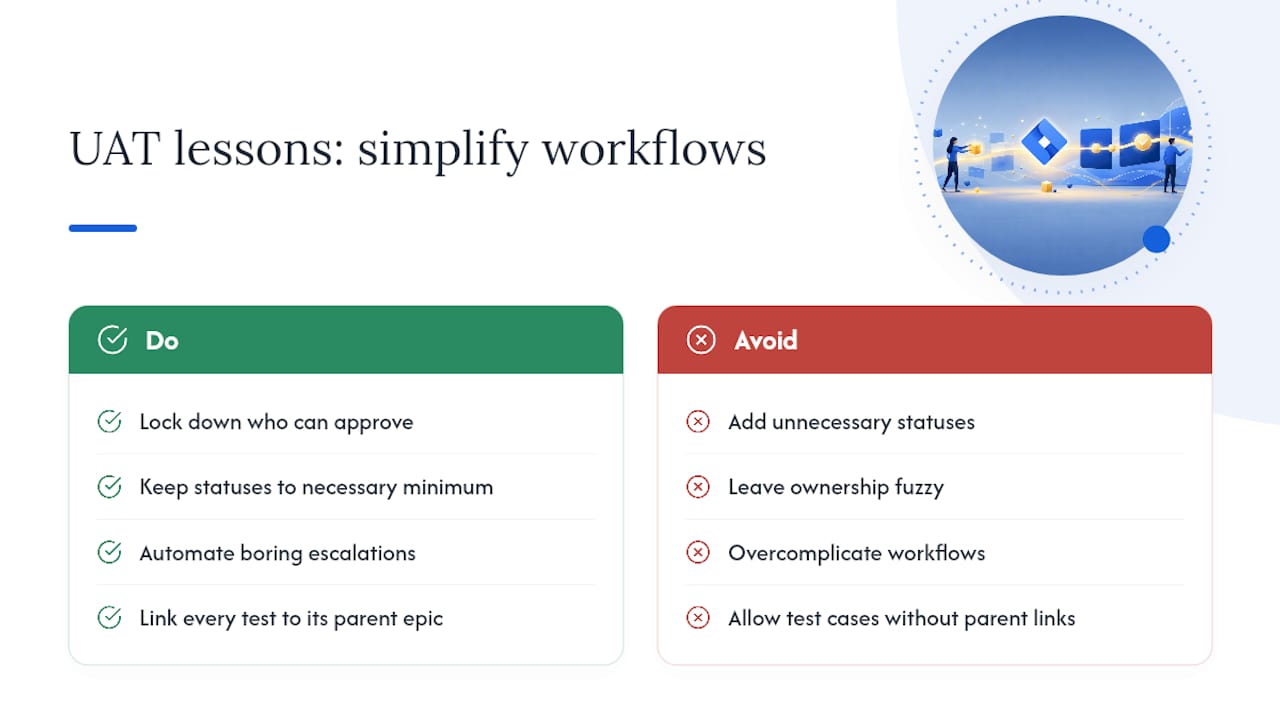
The biggest failure mode isn’t a missing feature. It’s overcomplication: teams add eight statuses when five would do, or let ownership stay fuzzy until a “Passed” ticket gets challenged during a release review. The fix is almost always simplification, not more tooling.
Quick wins that consistently pay off: lock down who can approve, keep your status list to the minimum that reflects real decision points, automate the boring escalations, and never let a test case exist without a link back to its parent epic. Traceability is cheap to build early and expensive to reconstruct later.
— Marketing
Ready to Cut UAT Triage Time With Wezardapp?
Manually configuring statuses and permissions solves the workflow problem. It doesn’t solve the intake problem: vague bug descriptions, duplicate tickets, and testers who can’t articulate what went wrong in a text box. Some tools are built to fill that gap by capturing richer feedback including recording the tester’s screen, transcribing it in real time, and detecting duplicates before they clutter your backlog.
For teams already running a structured UAT project, Wezardapp’s Jira bug tracking integration syncs new reports as properly formatted tickets in one click, complete with video context attached. If you’re comparing this against other AI-driven workflow tools generally, the broader AI productivity workflow landscape is worth a look too. Request a demo or check the integration documentation to see how a single test cycle would run through it before your next release.