
A HAR file bug report is a normal bug report with one extra attachment: a recording of everything your browser sent and received while the problem happened. To make one, open the Network tab in your browser’s developer tools, turn on “Preserve log,” reproduce the bug, export the HAR file, remove anything sensitive, and attach it next to your steps to reproduce, your environment details and a screenshot or video. This guide walks through each part, including the mistakes that make developers write back with “can’t reproduce.”
TL;DR
- A HAR (HTTP Archive) file is a JSON record of the requests and responses your browser made during a session, so it shows failed calls, slow responses and odd redirects that a screenshot cannot.
- Open DevTools and the Network tab before you reproduce the bug, enable “Preserve log,” and export only after the failure appears.
- Treat a HAR file like a password: it can contain cookies, tokens and request payloads. Sanitize it and share it only through the ticket or support case.
- Pair it with the URL, numbered steps, a timestamp, browser, OS and device details, and console logs. Zip it if it is large.
- Attach several files to one ticket instead of pasting fragments into comments, so the evidence stays together.
Table of Contents
- What a HAR file is and when it helps
- How to record a HAR file
- Clean it before you send it
- Device and environment details that belong beside the HAR file
- Writing the report around the HAR file
- Attaching multiple files to one bug report
- Why manual HAR collection breaks down in UAT
- Our perspective
- Where Wezard fits
- A checklist to keep next to your ticket template
- FAQ
- Sources
What a HAR file is and when it helps
A HAR file is a JSON-formatted archive of the web requests and responses a browser handled during a session: URLs, headers, response times, HTTP status codes and cookies. According to VIPRE’s support documentation on HAR files, support teams use them to pinpoint slow loads, failed requests, redirects, errors and unexpected behavior in web pages and web apps.
That makes a HAR file the right attachment when the symptom lives on the network side:
- A page loads halfway, or a spinner never stops.
- A form submits and nothing happens, or you get a generic error.
- A report or export times out.
- Login loops back to the sign-in page.
- Something works for a colleague but not for you.
It is the wrong attachment when the bug is purely visual, such as a misaligned button or a wrong label. For those, a screenshot or a short recording with a clear description is faster, and a HAR file only adds noise (and risk).
There is one more reason HAR files matter in testing. Packet captures usually cannot show the contents of encrypted HTTP traffic, so, as Cisco Meraki’s troubleshooting guide explains, a HAR file taken from the browser can show what a network capture cannot.
How to record a HAR file
The steps are nearly identical across browsers. The general pattern, as laid out in Google Cloud’s guide to capturing browser traces, is to open the Network tab in DevTools, enable “Preserve log,” clear existing entries, reproduce the issue and export the capture as a HAR file.
The universal sequence
- Open a fresh window. Vercel recommends a private or incognito window so extensions and stale session data do not clutter the capture.
- Go to the page just before the problem. Do not trigger the bug yet.
- Open DevTools and select the Network tab. Do this first. NetBird’s documentation warns that requests made before the Network tab starts recording are not captured.
- Tick “Preserve log” (Chrome and Edge) or “Persist Logs” (Firefox). Without it, a page navigation wipes the entries you need, which is how most empty HAR files happen.
- Clear the log, so the file contains only the failing action.
- Reproduce the bug, keeping the recording running, and note the approximate time it happened.
- Export the HAR file and give it a name that identifies the ticket and date.
Chrome and Edge
Press F12 (or right-click, then Inspect), open the Network tab and check Preserve log. After reproducing the issue, use the export button in the Network toolbar. Chrome’s own documentation notes that by default you can export a sanitized HAR that leaves out Cookie, Set-Cookie and Authorization headers, and that exporting with sensitive data is a separate, deliberate choice. For a bug report, the sanitized option is usually the right starting point. Tell the developer if you can provide the fuller version on request through a secure channel.
Firefox
Open the Network tab from the developer tools, enable Persist Logs, reproduce the problem, then right-click in the request list and choose the option to save all as HAR. Firefox does not sanitize on export the way Chrome’s default does, so review the file before sending it.
Safari
Safari hides its developer tools until you turn on the Develop menu in Settings, under Advanced. After that, open Web Inspector, go to the Network tab, reproduce the issue and use the export button to save the HAR. It is a macOS-only workflow, so if the bug happened on an iPhone, say so in the report and record a short video as well.
Common recording mistakes
| Mistake | What the developer sees | Fix |
|---|---|---|
| DevTools opened after the bug | An empty or partial file | Open the Network tab first, then reproduce |
| “Preserve log” off | Entries vanish after a redirect or reload | Enable it before you start |
| Long session recorded | Hundreds of unrelated requests | Clear the log right before the failing action |
| Wrong browser profile | Extension traffic mixed in | Use a private window |
| Export before the failure | A healthy session | Export only after the error appears |
Clean it before you send it
This is the step people skip, and the one that matters most in a business setting. HAR files can contain cookies, session tokens, authorization headers and request payloads. Vercel’s guidance is to share them only directly with support as a case attachment, never publicly. AWS warns that HAR files and console logs can capture usernames, passwords and keys, and that you should remove them before sending.
NetBird goes further and describes a HAR file as a live credential that deserves the same care as a password or session token. If one with live tokens is exposed by accident, its advice is to sign out immediately so the session is invalidated.
A practical routine for UAT testers:
- Export sanitized if your browser offers it.
- Open the file in a text editor and search for “password,” “token,” “authorization,” “cookie” and “secret.”
- Check request bodies for customer names, emails, account numbers or health data. UAT environments often hold copies of production data.
- Use a sanitizer if you have many files. Zendesk’s support article notes that Cloudflare released a HAR sanitizer for stripping sensitive information.
- Sign out of the test session afterward, especially if you could not fully sanitize the file.
- Send it only through the ticket. Not chat, not personal email, not a public issue.
If your test data includes regulated information, loop in your security or compliance contact before attaching anything. Our piece on bug reporting controls for HIPAA-sensitive UAT covers what to check, and video privacy in testing covers the same concern for recordings.
Device and environment details that belong beside the HAR file
A HAR file tells the developer what the browser did. It does not say where. The same request can succeed on one setup and fail on another, so the report needs the environment, written the same way every time.
Include:
- Browser and exact version, such as the version string from the browser’s About page, not just “Chrome.”
- Operating system and version, for example Windows 11 or macOS with its release number.
- Device type and model for mobile or tablet testing, plus the screen size or window size if layout is involved.
- Application build or release, and the environment name: UAT, staging, or a named test tenant.
- Network context: office network, VPN, home Wi-Fi or mobile data. Proxies and VPNs are a frequent cause of failed requests.
- User role and account type used in the test, without sharing credentials.
- Browser extensions that could interfere, such as ad blockers or password managers, or a note that you used a private window with none.
- Language and region settings when the bug involves dates, currency or text.
This matters for business testers in particular, because a corporate laptop with a managed browser, a security proxy and single sign-on behaves differently from a developer’s machine. Saying “managed laptop, on VPN, SSO login” saves a day of back and forth.
Some of this can be captured automatically. Our guide to turning auto capture into a repeatable repro shows what a tool can record on your behalf, so testers do not have to type it from memory.
Writing the report around the HAR file
A HAR file is evidence, not the report. Developers still need the story. Vercel’s guidance asks for the URL, the exact reproduction steps and an approximate timestamp, and Zendesk recommends adding browser console logs to the HAR file. The timestamp lets an engineer match your request to server logs, which is often the fastest route to a root cause.
A report structure that works
Title: feature, what breaks, and where. “Invoice export returns error 500 on Edge, UAT environment.”
Where it happened: full URL and environment name.
Steps to reproduce: numbered, one action each, starting from a known state such as “logged in as an approver.”
Expected result: what the requirement or acceptance criterion says should happen.
Actual result: what you saw, including any error text word for word.
Time: date, time and time zone of the failure.
Environment: the list from the section above.
Attachments: HAR file, console log, screenshot or recording, each named in the report.
A short worked example
Title: Approve button does nothing for “Finance Approver” role, UAT
Steps: 1. Log in as a Finance Approver. 2. Open Purchase Orders and select a pending order. 3. Click Approve.
Expected: Status changes to Approved. Actual: Button shows a spinner for about 30 seconds, then returns to Pending with no message.
Time: 2:14 PM Eastern. Environment: Edge, Windows 11, office VPN, UAT build from this week.
Attached: approve-failure.har (sanitized), console.txt, short screen recording.
A developer opening the HAR file can go straight to the approve request near 2:14 PM and see the status code and timing. Without the file they would be guessing.
For more on the writing itself, see our guide to submitting clear bug reports to developers, and our note on console logs and session context for why logs belong beside the network data.
Attaching multiple files to one bug report
A solid report usually carries more than one file: the HAR, a console log, a screenshot, a recording. Keep them together on the ticket.
- Use the ticket’s attachment area. AWS’s instructions are to add the HAR file and console logs under Attachments in the support case, then submit.
- Compress large HAR files. Zendesk advises renaming and zipping HAR files, because uncompressed files often exceed attachment limits.
- Name files consistently. A pattern like
ticket-id_what-failed_date.harkeeps things findable months later. - Mention each file in the description. Say what it shows and the minute to look at.
- One bug per ticket. If a HAR file covers two failures, split the report so each ticket can be closed on its own.
- Do not paste HAR contents into comments. They are long, hard to read and leave sensitive data in the ticket history.
If you are filing into Jira, Azure DevOps or ServiceNow, check your instance’s attachment size limit before a large recording or HAR file fails to upload.
Why manual HAR collection breaks down in UAT
HAR files suit engineers and support specialists. UAT testers are mostly business users who know the process and not the browser tools. Asking a claims analyst to enable Preserve log, sanitize a JSON file and zip it is a lot, and the result is either no file, an empty file or one full of tokens.
Teams that run UAT at scale usually hit the same three problems:
- Inconsistent evidence. Some tickets have a HAR file, most do not.
- Missing context. The browser, role and timing are left out or wrong.
- Duplicates. Five testers hit the same failure and file five tickets, each with different attachments, and triage burns time merging them.
The pattern we recommend is to let testers describe the problem the way they naturally would, with video and voice, and have the tool collect the technical context around it. Developers can still ask for a HAR file when a network-level diagnosis needs one, and that request is then a single targeted ask instead of a default burden on every tester.
Our perspective
We build UAT software, and we see the same pattern on teams that struggle with bug quality: the evidence is good in theory and absent in practice. A HAR file is a great artifact when an engineer asks for it, but it should not be the first thing a business tester has to produce.

We think the report should start with what the tester saw. A screen recording shows the real workflow, real-time transcription captures the explanation while it is fresh, and the technical details are attached around it. That is why Wezard records the screen, transcribes the issue as the tester speaks and checks for duplicate tickets before anything reaches Jira or Azure DevOps. Testers spend their time testing, and developers get a ticket that already holds the context.
We also take the security side seriously. Anything that carries session data should be handled as sensitive, which is why we are SOC 2 certified and support enterprise SSO. Our advice to any team is to decide in advance who may request a HAR file, how it is sanitized and where it is allowed to live.
— Marketing
Where Wezard fits
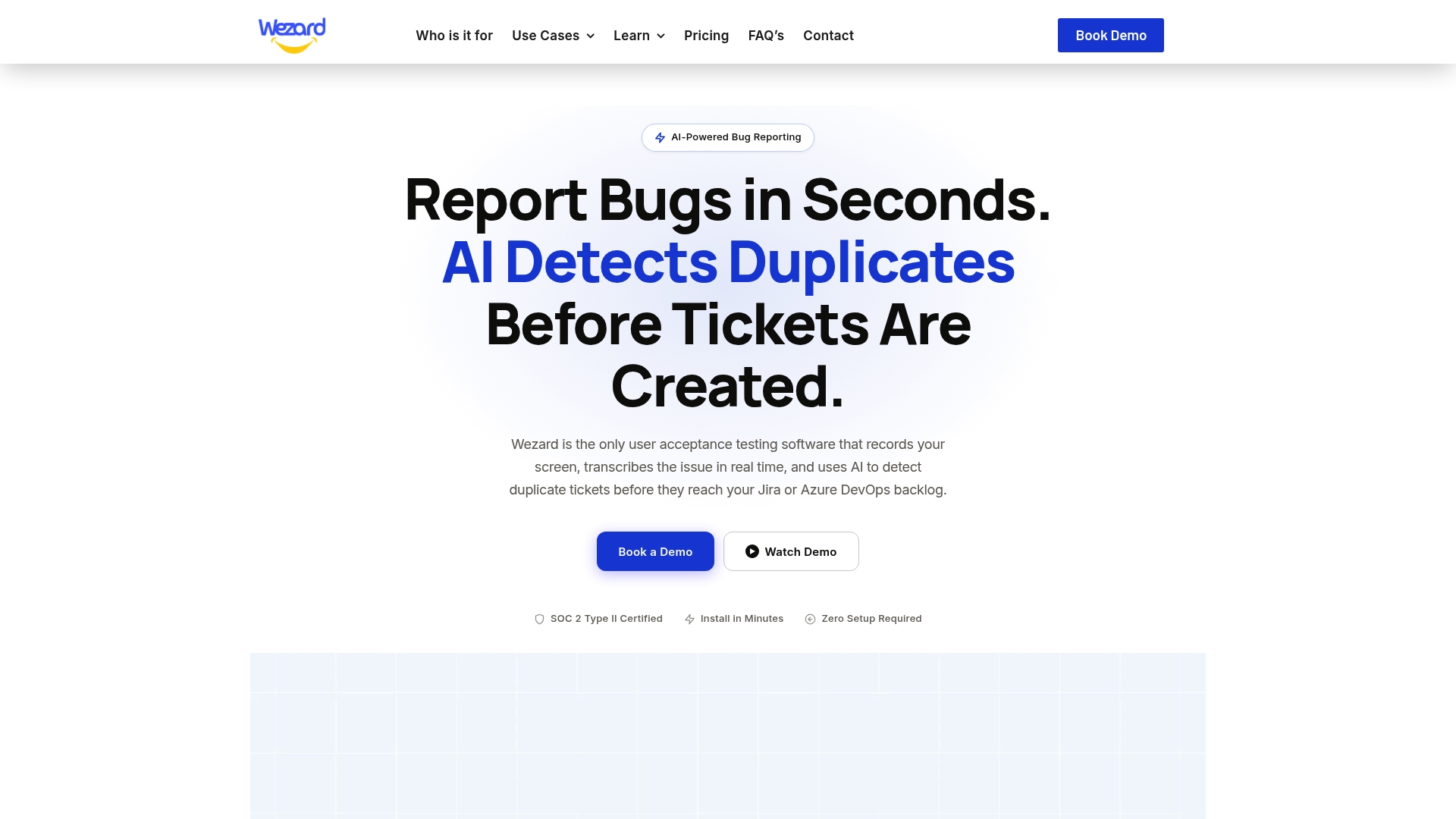
If your UAT cycle produces tickets with missing steps, mismatched environments and duplicates, our UAT testing feedback tool is built for that workflow. Testers record their screen and speak the issue, we transcribe it in real time, and duplicate detection runs before the ticket reaches your backlog. It connects directly to Jira, Azure DevOps and ServiceNow.
Plans are published on our pricing page: Starter is $25 per month, Team is $70 per month and Business is $160 per month, with Enterprise available through our team. If duplicate noise is your main pain, our pilot plan for cutting duplicate tickets shows how to measure the effect over 30 to 90 days.
A checklist to keep next to your ticket template
- Is the problem network-related, so a HAR file will help?
- Did you open DevTools and the Network tab before reproducing it?
- Is Preserve log (or Persist Logs) on, and was the log cleared before the failing action?
- Did you export after the error appeared?
- Did you sanitize the file and search it for tokens, passwords and personal data?
- Are the URL, numbered steps, timestamp and expected versus actual result in the report?
- Are browser, OS, device, build, network and role listed?
- Are the console log and a screenshot or recording attached?
- Is the HAR file zipped and named clearly?
- Did you sign out of the test session if there was any doubt about exposure?
FAQ
Do I need a HAR file for every bug report?
No. Attach one when the issue involves loading, failed requests, slow responses, redirects or errors you cannot explain from the screen. For visual or wording problems, a screenshot or short recording with clear steps is enough and avoids sharing session data you do not need to share.
Is it safe to send a HAR file to a vendor or developer?
Only if you handle it carefully. It can contain cookies, tokens and request payloads, so sanitize it, send it through the ticket or support case instead of public channels, and sign out of the session afterward if you are unsure what it holds.
What device info should I put in a bug report?
List the browser and its version, the operating system and version, the device model for mobile testing, the application build and environment, your network context such as VPN or office Wi-Fi, and the user role you tested with. Add the screen or window size when the problem involves layout.
How do I attach multiple files to one bug report?
Use the attachment area of your ticket and add the HAR file, console log and screenshot or recording together, then name each one in the description. Zip large HAR files first, since uncompressed ones often exceed attachment limits.
Sources
- Capturing HAR/HTTP Files and Their Role in Troubleshooting (VIPRE)
- Troubleshoot Web Page Issues with HAR Files (Cisco Meraki)
- Capture browser trace information (Google Cloud)
- How to create a HAR file for Vercel Support
- Record a HAR file (NetBird Docs)
- Network features reference (Chrome DevTools)
- Create a HAR file and Console logs for an AWS Support case
- Workflow: Generating a HAR file for troubleshooting (Zendesk)