Send a screenshot when the problem is visible in a single frame, such as an error message, a wrong value or a broken layout. Send a short screen recording when the bug depends on a sequence of actions, timing or movement. In most UAT cycles the best report contains both, plus a few lines of text.
This guide shows how to choose, what each format needs around it to be useful, and how to keep private data out of your attachments.
TL;DR
- Use a screenshot for a visible state: an error message, a wrong setting, an unexpected result already on screen.
- Use a recording for a sequence: a workflow, a transition, an intermittent issue, or anything you struggle to explain with one image.
- Neither format replaces written steps, expected result, actual result and environment details.
- Review every capture for passwords, tokens and personal data before you share it.
- For UAT, a recording with a transcript and a cropped key frame gives developers the fastest route to reproduction.
Table of Contents
- Quick comparison: screenshot vs video at a glance
- What each format actually proves
- When a screenshot is enough
- When a screen recording wins
- The best answer is usually both
- Privacy: check every capture before you share it
- Workflow tips for UAT teams
- Capture evidence once, send it everywhere
- FAQ
- Sources
Quick comparison: screenshot vs video at a glance
| Question | Screenshot | Screen recording |
|---|---|---|
| What it shows | The result of the bug | The actions that led to it |
| Best for | Error messages, wrong labels, layout glitches, incorrect settings | Multi-step workflows, animations, timing, intermittent behavior |
| Effort to create | A few seconds | A short rehearsal, then one clean take |
| Effort to review | Seconds | Depends on length, so keep it focused |
| Easy to edit or crop | Yes | Harder |
| Easy to search and scan | Somewhat | No, unless transcribed |
| Main risk | Missing context | Hidden sensitive data, long rambling takes |
The split matches how support teams describe it. Sendcloud’s support guidance says a screenshot fits a specific error or unexpected result. A recording fits a sequence of actions, a workflow or an issue that one image cannot explain.
What each format actually proves
A screenshot is a witness to an outcome. It tells a developer what the screen looked like when you took it. It cannot tell them how you got there, how long you waited, or whether the screen changed a half second later.
A recording is a witness to a process. It captures the clicks, the order of the steps, the pauses and the moment things went wrong. That is why it helps most with the bugs developers call “cannot reproduce”. Those are nearly always about sequence or timing, and a still image drops both.

Microsoft’s own reporting guidance draws the same line. In its Visual Studio problem-reporting instructions, a screenshot can be cropped to remove sensitive or unrelated parts. Recording your actions captures the interaction sequence that leads to the issue. The same page stresses clear reproduction steps, which brings us to the main caveat.
Neither one is the whole report
A recording shows symptoms on one attempt. It does not prove a root cause, and a developer cannot search it, filter it or paste a line of it into a ticket. Treat media as evidence attached to a structured report, not as the report itself.
Research on real-world reports points the same way. A 2025 study of 1,000 bug reports from 10 open-source web applications found that textual descriptions and screenshots were the most frequently used methods for describing functional and performance errors. Text and a still image are the baseline. Video is what you add when those two fall short.
When a screenshot is enough
Reach for a screenshot when the evidence is already sitting on the screen and the cause is obvious from the steps you can write in one or two lines.
- A specific error message. The exact wording matters, and a screenshot preserves it without typos.
- A wrong value or label. A total that does not add up, a misspelled field, a date in the wrong format.
- A layout or rendering problem. Overlapping text, a cut-off button, a missing icon.
- An incorrect setting or state. A toggle that shows the wrong position, a status that should read “Approved”.
- Anything you will paste into a document. Images embed inline in tickets, wikis and test sign-off documents, while video usually needs a player or a link.
These cases line up with the guidance from Sendcloud above: a screenshot suits a visible state.
Make the screenshot do more work
A bare crop of a red banner is a common reason for a follow-up question. A few habits fix that:
- Do not crop too tightly. Sendcloud’s help center notes that surrounding page elements help the support team understand the context of the error.
- Keep the address bar or page title visible. Google Workspace support asks for legible screenshots showing the full URL and the exact error or condition.
- Mark the problem. An arrow or box around the faulty element saves the reader from hunting for it.
- Add one line of text. State what you expected and what you got. “Expected: order total of the cart. Actual: total excludes the shipping line.”
- Check what else is in the frame. Browser tabs, notification pop-ups and personal data often sneak in.
Our article on rules for bug report attachments goes deeper on naming, sizing and the attachment conventions that cut triage time.
When a screen recording wins
Switch to video when you catch yourself typing “first I did this, then that, and then sometimes…”. If the explanation needs more than a short numbered list, a recording will carry it better.
- Multi-step workflows. Approval chains, checkout flows, form wizards where an earlier choice changes a later screen.
- Animations, transitions and gestures. A menu that flickers, a spinner that never stops, a drag-and-drop that drops the wrong item. Documentation for developer tooling such as Argent’s screen recording guide says to record when a screenshot is insufficient for exactly these cases: animations, transitions, gestures and sequences of screens.
- Timing problems. Slow loads, delayed updates, a button that works only if you click it too early.
- Intermittent issues. Once you catch it on video, you have proof that it happens, even if you cannot make it happen again on demand.
- Issues business users find hard to put in words. Testers who are not technical often describe a problem poorly but demonstrate it perfectly. A recording lets them show instead of write.
How to record a clean, useful take
A good bug recording is short, intentional and repeatable. A rambling ten-minute walkthrough forces the reviewer to do the investigation you were supposed to do.
- Start from a known point. Begin on the last screen where everything worked, so the developer sees where the path diverges.
- Do one minimal attempt. Skip detours, unrelated clicks and side explorations.
- Capture only what matters. If only one window is relevant, record that window, not your whole desktop. Our note on partial screen recording explains why that extra minute of setup speeds up triage and reduces what you expose.
- Narrate only what helps. Say what you expect before you click and what you see when it goes wrong. Leave out commentary on the app’s design.
- Stop right after the failure. A few seconds of the error state is enough.
- Silence notifications first. Turn on your system’s Do Not Disturb mode so a chat preview or email alert does not appear mid-recording.
Turn the narration into text
The weakness of video is that nobody can search it. A transcript fixes much of that. When you speak the issue while you record, the words can become the description of the ticket. We cover the workflow in turning video transcripts into bug reports and what to check in real-time bug transcription for UAT. If you prefer speaking to typing in Jira, see when dictation beats typing.
The best answer is usually both
The either-or framing is a bit of a trap. A strong UAT bug report uses each format for what it does best:
- A recording to show the path and the moment of failure.
- A screenshot of the exact error state, cropped with enough context and marked up.
- Text for the title, steps to reproduce, expected result, actual result and environment.
That last part is the piece teams skip. Whatever the media, the report should include the environment (browser, device, operating system, build or version, test account role), the numbered steps, the expected and actual results, and how often the issue occurs. Our guides on submitting clear bug reports to developers and why structured bug reports speed up fixes show how to lay that out, and why context matters in bug reports explains which details developers ask about first.
A quick decision guide
| If the bug looks like this… | Send |
|---|---|
| A single wrong message, number or label | Screenshot plus one line of text |
| A visual defect on one screen | Annotated screenshot |
| It only happens after several steps | Short recording plus numbered steps |
| It involves motion, delay or flicker | Recording |
| It happens sometimes | Recording of the failure, plus how often it occurs |
| You cannot explain it in two sentences | Recording with narration |
| It involves a backend or data problem | Screenshot or recording, plus logs and session context |
For that last row, console output and session details are often what developers need most. We explain how to attach them in console logs and session context for UAT teams, and how to pair a replay with steps in paste-ready bug reproduction steps.
Privacy: check every capture before you share it
Screenshots and recordings are exports of your screen, and your screen holds more than the bug. UAT environments often use copies of production data, so a stray customer name or account number is easy to capture.
The major platform vendors treat this seriously:
- Google’s support guidance lists what not to submit: passwords, government identification numbers, cardholder data or unredacted captures containing sensitive content.
- Microsoft’s Azure documentation warns that browser traces can contain sensitive information, including authentication tokens, and recommends sanitizing or carefully reviewing the material before sharing.
- The bug-report guidelines from Fluxer say to include only evidence that shows or reproduces the bug, to crop or blur unrelated personal data, and never to include session tokens, passwords or authentication cookies.
A pre-send checklist
- Close or hide chat apps, email and unrelated browser tabs before capturing.
- Use test accounts and masked data where your environment allows it.
- Crop or blur anything unrelated to the bug. Remember that blurring a screenshot is easier than editing a video, so decide your scope before you press record.
- Scrub the first and last few seconds of a recording, where people often show the desktop.
- Never paste tokens, cookies or credentials into the description, even to “help” the developer.
- Check who can open the ticket. A recording attached to a widely visible project carries the same exposure as a public post inside your company.
We go further on this in UAT video privacy by design.
Workflow tips for UAT teams
Business users run acceptance tests between other duties. They are not testers by trade, so the process needs to be light.
- Set a default. Tell testers: “Screenshot for a visible error, recording for anything that takes more than two steps.” A one-line rule is easier to follow than a policy.
- Cap the length. Ask for a focused clip rather than a full session. A short clip gets watched, and a long one tends to be skimmed.
- Require the text fields anyway. Title, steps, expected, actual. Media supports them and does not substitute for them.
- Capture environment data automatically where your tools allow it, so testers do not have to remember build numbers.
- Check for duplicates before filing. Ten testers hitting the same bug produce ten near-identical tickets with ten different screenshots. Triage time disappears into merging them. Our pieces on preventing duplicate Jira tickets at capture and in-app bug reporting cover how to catch repeats earlier.
- Write acceptance criteria that testers can point to. A clear pass or fail line makes the expected result in the report obvious. See types of software acceptance criteria.
If your team is documenting issues mostly through recordings, documenting software issues with screen recording walks through a format developers can act on fast.
Our perspective
In UAT, the person finding the bug is rarely the person fixing it, and the gap between them is where days get lost. Business users see a problem in seconds and then spend ten minutes trying to describe it. We think that effort belongs to the software, not to the tester.
That is why we built Wezard around recording and speaking. A tester records the screen, says what is wrong, and the issue is transcribed as they talk. The result is a ticket with the video, the words and the context already attached, instead of a screenshot and a vague sentence.
We also think duplicates are an evidence problem. When several people report the same defect, each with a different capture, someone has to compare them by hand. Our AI checks new reports against existing ones before they reach your Jira or Azure DevOps backlog, so the team reviews one strong ticket rather than many weak ones. We claim a reduction in duplicate noise of up to 40% compared with manual processes or basic feedback tools.
Screenshots remain useful, and our guidance is to use them for what they do best: showing a visible state. Video and a transcript carry the rest.
Marketing
Capture evidence once, send it everywhere
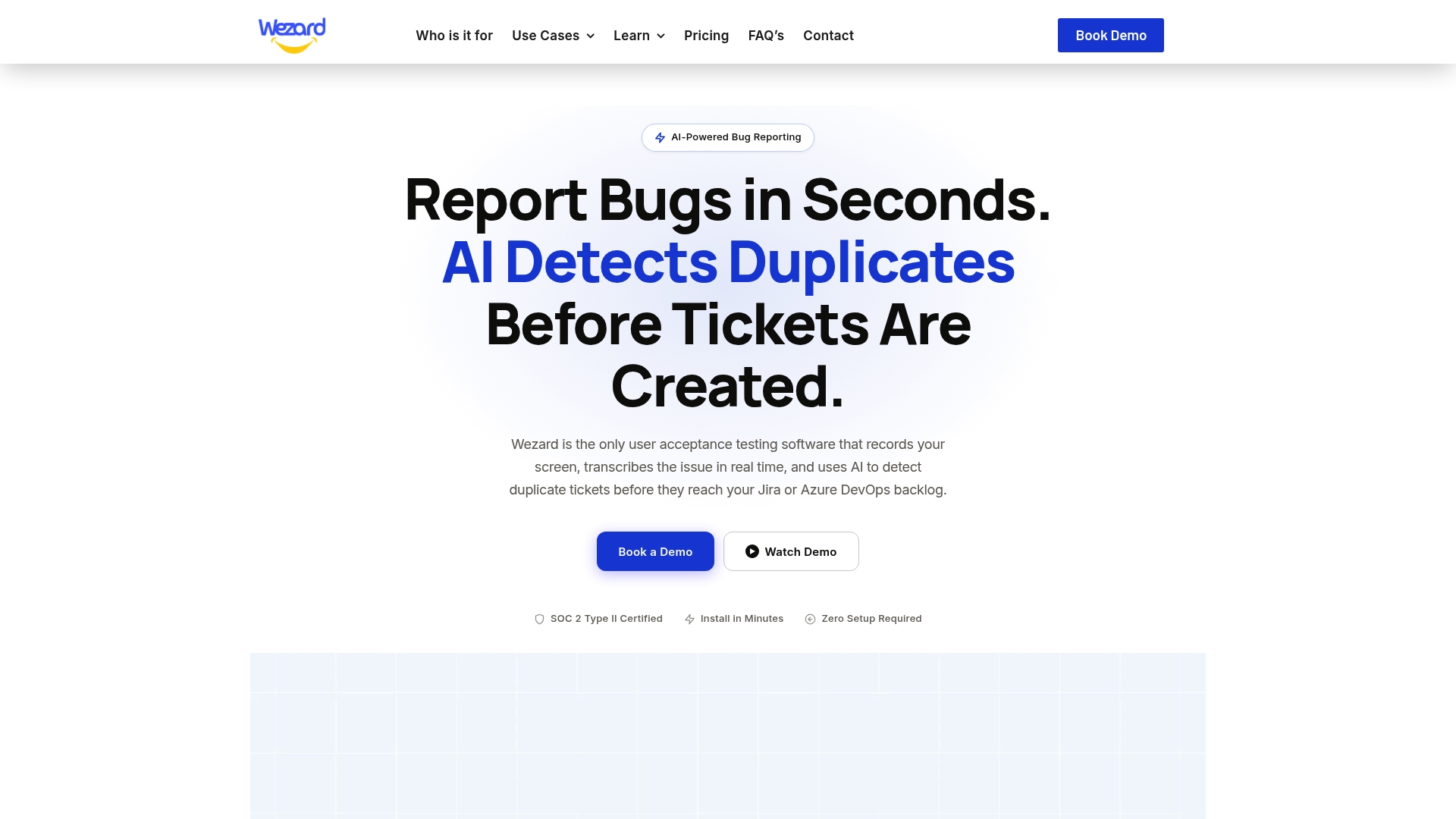
Wezard is user acceptance testing software that records the screen, transcribes the issue in real time and checks for duplicate tickets before they reach your backlog. Testers can create a ticket by voice or video, attach screenshots and files, and send it straight to Jira, Azure DevOps or ServiceNow.
Plans are published on our pricing page: Starter at $25 per month, Team at $70 per month and Business at $160 per month, with Enterprise available on request. If you already use Jira or Azure DevOps, the Jira integration and Azure DevOps integration pages show how reports flow into your backlog.
FAQ
Is a screen recording always better than a screenshot?
No. A screenshot is faster to make, easier to review and easier to embed in a ticket, and it is the right choice when the problem is a visible error or wrong value. A recording is better when the bug depends on steps, timing or motion. Pick the format that matches the failure.
How long should a bug report video be?
As short as it can be while still showing the last working screen, the steps and the failure. For most bugs that means a focused clip, not a full session. If you need a long recording to show the issue, break the report into separate bugs or add numbered steps so the reviewer knows where to look.
Can a video replace written steps to reproduce?
No. Media is hard to scan, search and update, and a recording shows symptoms from one attempt rather than the root cause. Keep the title, steps, expected and actual results, and environment details in text, and attach the recording as supporting evidence. A transcript of your narration can give you a head start on that text.
What should I never show in a screenshot or recording?
Passwords, session tokens, authentication cookies, government ID numbers, payment card data and unrelated personal information. Platform guidance from Google and Microsoft both advises reviewing or sanitizing captures before sharing them. Crop, blur or re-record if anything sensitive appears.
Should I attach both a screenshot and a video?
Often yes, when the bug takes several steps to reach. Use the video to show the path and a marked-up screenshot to show the exact error state. For a one-screen defect, a single annotated screenshot is enough.
Sources
- How to provide visual evidence for troubleshooting, Sendcloud Help Center
- Report a problem with Visual Studio, Microsoft Learn
- Information needs in bug reports for web applications, ScienceDirect
- Screen recording, Argent documentation
- Before you contact support: Gather key information, Google Workspace Admin Help
- Capture a browser trace for troubleshooting, Microsoft Learn