
What does it mean to annotate a website in QA?
When testers mark up a live web page with comments, arrows, highlights, and shapes to communicate bugs or feedback, that’s website annotation in practice. It’s not a screenshot emailed to a Slack channel. It’s a structured, contextual record pinned directly to the element that’s broken, capturing exactly what a developer needs to act without a follow-up call.
The core value is closing the context gap. A developer who receives a vague “the button looks wrong” comment spends time reproducing the issue. One who receives a pinned annotation with the browser version, page state, and a pixel-precise measurement of the misalignment fixes it in minutes. That difference compounds across a sprint.
Annotation types each serve a specific purpose:
- Text comments: Explain the issue in plain language, linked to the exact element
- Highlights: Flag sections of text or UI that need attention without interrupting the layout
- Arrows: Direct attention to a specific pixel or element when the issue is visual
- Shapes: Frame a region, useful for layout problems that span multiple elements
- Freehand drawing: Sketch expected behavior directly on the page
Modern annotation workflows connect to Jira and Azure DevOps, converting pinned comments into tracked tickets automatically. That integration is what separates annotation from informal feedback.
Table of Contents
- What features should you look for in website annotation tools?
- Best practices for creating annotations that actually get bugs fixed
- How to stop feedback fatigue from killing your QA cycle
- How Wezardapp handles annotation with AI
- Step-by-step workflow for annotating websites during testing
- Which testing scenarios call for different annotation approaches?
- Collaborative annotation techniques that improve team communication
- How annotations connect to automated UAT frameworks
- How annotation-driven defect tracking cuts resolution time
- Wezardapp cuts UAT annotation time from report to ticket
- Key Takeaways
What features should you look for in website annotation tools?
Not all webpage commenting features are equal. For QA teams running automated user acceptance testing, the gap between a basic screenshot tool and a purpose-built annotation platform is the difference between a clean backlog and a pile of duplicate tickets.
The features that actually matter:
- Pixel-precise measurement: Lets testers capture exact distances and dimensions, so a “button is too far left” report includes the number in pixels rather than a vague description. Pixel-precise measurement on any live page is now a standard capability in serious tools.
- Automatic screenshot capture: When an annotation is submitted, the tool should attach a screenshot automatically, creating an audit-ready record without any extra steps from the tester.
- Jira and Azure DevOps integration: Annotations that don’t connect to your defect tracker are just sticky notes. Direct integration converts feedback into tasks with no copy-paste.
- CSS selector capture: Pointing at an element and grabbing its selector gives developers an exact target. CSS selectors and environment info eliminate the “which button?” back-and-forth entirely.
- Centralized inbox with status tracking: Open, resolved, and archived states keep the whole team aligned on what’s done and what isn’t.
- Real-time collaboration: Live cursors and shareable links let multiple testers work the same session without needing separate accounts.
- Browser extension support: Tools that run as extensions handle staging sites and authenticated environments that URL-embedding tools can’t reach.
Pro Tip: Look for tools that support threaded comments on annotations. A single pinned thread keeps all discussion about one bug in one place, rather than scattered across email.
Best practices for creating annotations that actually get bugs fixed
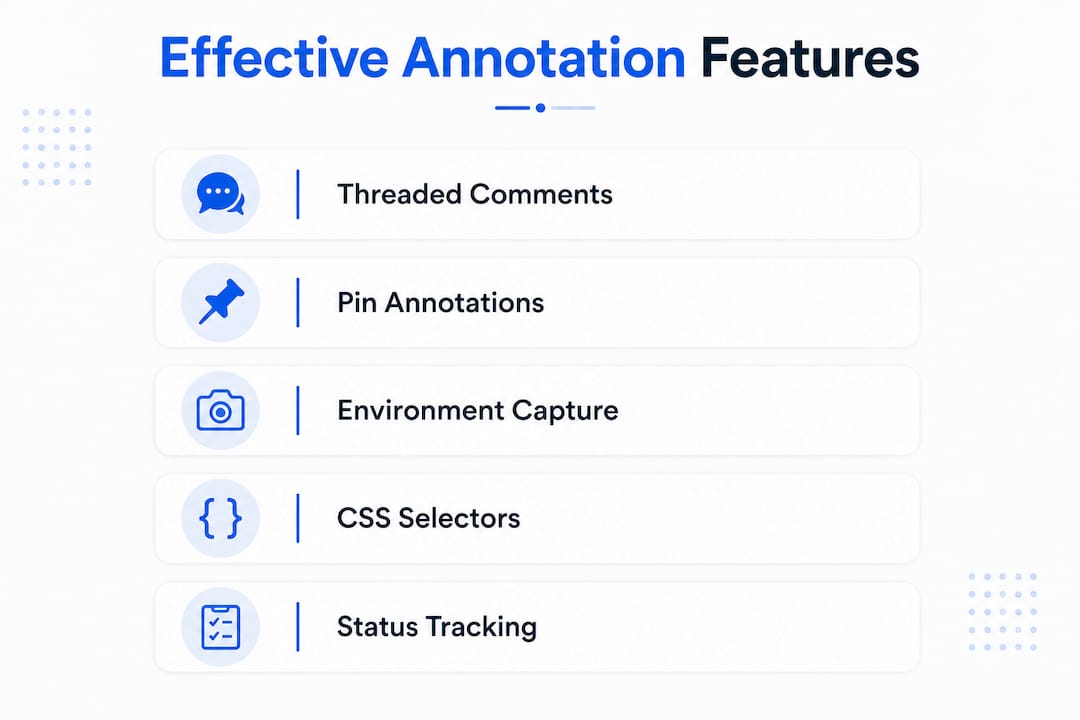
The annotation is only as useful as the information it contains. A pinned arrow with “fix this” attached to it creates work for the developer, not clarity.

Capture environment context alongside every visual mark. Browser version, viewport size, and page state (logged in, specific user role, after a specific action) belong in the comment body. A developer reproducing a bug on a different browser or session state will miss it entirely without that data.
Use CSS selectors when the element is ambiguous. Most annotation tools with an inspector feature let you click an element and copy its selector. Paste it into the comment. The developer can query it directly in DevTools rather than hunting by eye.
Phrase comments as observations, not instructions. “The modal closes before the form submits on mobile viewport” is more useful than “modal is broken.” Describe what you saw, what you expected, and the steps that got you there.
Match the annotation type to the problem. Arrows work for pointing at a single element. Shapes work for layout issues spanning a region. Freehand drawing works when you need to sketch the expected state. Using a text comment for a visual spacing issue wastes the developer’s time.
Combining visible screenshots with annotations creates an audit trail that holds up weeks later, when the original tester may not be available to clarify.
How to stop feedback fatigue from killing your QA cycle
Feedback fatigue hits when bug reports scatter across email threads, Slack messages, and static screenshots with no central home. Developers lose track of what’s been fixed. Testers re-report issues that were already resolved. Launch decisions get made on incomplete information.
The fix is a centralized task-based inbox where every annotation has a status. Open means it needs attention. Resolved means the developer marked it done. Archived means it’s been reviewed and closed. That three-state system alone eliminates most of the “is this fixed?” conversations.
Approval records in review rooms take it further. When a client or stakeholder signs off on a set of resolved annotations, that decision is stored. No more “I thought we approved that” ambiguity before launch.
Replace disconnected feedback channels with in-context annotations directly on the site. A comment pinned to the broken element is harder to lose than an email with an attached screenshot. For teams managing feedback status in Jira, the annotation-to-ticket pipeline keeps everything traceable from first report to close.
How Wezardapp handles annotation with AI
Wezardapp is built specifically for user acceptance testing teams who need more than a markup tool. It records your screen session, transcribes the issue in real time as you narrate it, and uses AI to detect whether the ticket you’re about to create already exists in your backlog.
That duplicate detection is the feature most annotation tools skip. In a UAT cycle with multiple testers hitting the same flows, the same bug gets reported three or four times. Each duplicate ticket is noise that slows the developer down. Wezardapp catches those before they reach Jira or Azure DevOps.
The Jira integration and Azure DevOps sync work automatically. A tester annotates an issue, narrates what they see, and the ticket appears in the backlog with the screenshot, environment data, and transcription attached. No manual ticket creation. The UAT bug tracking workflow stays clean because the AI filters the signal from the noise before it hits the queue.
Browser extension support means Wezardapp works on staging environments and password-protected sites, where browser extensions outperform URL-embedding tools due to higher browser privileges.
Step-by-step workflow for annotating websites during testing
A repeatable workflow prevents annotations from becoming inconsistent and hard to act on.
- Set up your environment. Open the target page in the correct browser, logged in as the appropriate user role, with the viewport set to the test specification.
- Activate your annotation tool. Launch the browser extension or web app and confirm it’s connected to the correct project in your defect tracker.
- Reproduce the issue. Walk through the steps that trigger the bug before annotating, so the annotation captures the exact state.
- Pin the annotation. Place the comment, arrow, or shape directly on the affected element. Include browser version, page URL, and user role in the comment body.
- Capture the screenshot. Let the tool attach it automatically, or grab it manually if the tool requires it.
- Submit and verify the ticket. Confirm the annotation created a ticket in Jira or Azure DevOps with all context attached.
- Track status. Check the centralized inbox to confirm the annotation moves from open to resolved after the developer addresses it.
Which testing scenarios call for different annotation approaches?
The right approach depends on what you’re testing and who needs to act on the feedback.
Visual and layout bugs need pixel-precise tools with measurement features and shape annotations. A tool that captures element dimensions and distances gives front-end developers exact numbers to work from.
Functional bugs in authenticated flows require browser extension tools. URL-embedding apps can’t reach pages behind a login or with strict Content Security Policies. Browser extensions handle authenticated pages that other tools can’t embed.
Client-facing review cycles benefit from tools with review rooms and approval records. Stakeholders who don’t have the extension installed can view annotations through a shared link and sign off without any setup.
High-volume UAT with multiple testers needs AI-powered duplicate detection. Without it, the same bug floods the backlog from every tester who hits the same flow. Wezardapp’s duplicate detection addresses this directly.
Collaborative annotation techniques that improve team communication
Annotation works best when the whole team uses it consistently, not just individual testers working in isolation.
Assign annotation ownership by feature area. When each tester owns a section of the application, annotations stay organized and developers know who to follow up with on a specific report.
Use threaded comments to keep discussion on the annotation itself. A developer who needs clarification replies to the pinned comment rather than opening a separate Slack thread. The context stays attached to the bug.
Real-time collaboration with live cursors lets two testers work the same page simultaneously during a review session, which is useful for cross-browser comparison or pair testing. Recipients don’t need an account to view shared annotation links, which removes friction for stakeholders joining a review.
Set a team convention for annotation types. If everyone uses arrows for element-level issues and shapes for layout regions, the visual language becomes consistent and faster to read.
How annotations connect to automated UAT frameworks
Annotations and automated testing serve different purposes, but they work well together. Automated frameworks like Selenium or Playwright catch regressions. Manual annotation catches the issues automation misses: visual inconsistencies, copy errors, UX problems that don’t trigger a test assertion.
The connection point is the defect tracker. When annotations flow directly into Jira or Azure DevOps as structured tickets, they sit alongside automated test failures in the same backlog. Developers work one queue instead of two. For teams defining acceptance testing entry criteria, annotation-driven tickets can be part of the exit criteria for a UAT cycle.
Structured annotations also feed regression test creation. A well-documented bug report with environment data, steps, and a screenshot gives the automation engineer everything needed to write a test case that catches the same issue in future builds. Structured bug reports consistently speed up that handoff.
How annotation-driven defect tracking cuts resolution time
The resolution time improvement from annotation-driven tracking comes from one thing: developers spend less time reproducing issues. A bug report with a pinned annotation, attached screenshot, browser version, and CSS selector gives a developer everything to act immediately. A vague email with an attached screenshot gives them a starting point for a conversation.
AI-powered tools like Wezardapp add another layer by transcribing the tester’s narration in real time. The developer reads what the tester saw and heard, not just what they typed. That narration often captures the sequence of events that triggered the bug, which a typed comment frequently omits.
Centralized status tracking closes the loop. When every annotation has a visible status, testers stop re-reporting resolved issues and developers stop fielding questions about tickets they already closed. The software integration project scope for connecting annotation tools to existing defect trackers is typically small, and the reduction in back-and-forth pays for the setup quickly.
Wezardapp cuts UAT annotation time from report to ticket
If your team is still copying screenshots into Jira manually or chasing down which bugs are actually fixed, Wezardapp solves that specific problem. It records your screen, transcribes your narration, and creates the ticket automatically, with AI checking for duplicates before anything hits your backlog.
The bug tracking integration works with both Jira and Azure DevOps out of the box. Testers annotate and narrate. Wezardapp handles the rest. For teams running UAT cycles where the same flows get tested by multiple people, the duplicate detection alone reduces backlog noise significantly. Start a free trial at wezardapp.com/uat-testing and see how many duplicate tickets your current process is generating.
Key Takeaways
Effective website annotation in QA means pinning structured, context-rich feedback directly on live pages and routing it automatically into your defect tracker, cutting the back-and-forth that slows resolution.
| Point | Details |
|---|---|
| Context closes the gap | Include browser version, page state, and CSS selectors in every annotation to eliminate developer follow-ups. |
| Centralized status tracking | An open/resolved/archived inbox prevents duplicate reports and keeps launch decisions traceable. |
| Browser extensions for protected sites | Extensions handle authenticated and CSP-restricted pages that URL-embedding tools cannot reach. |
| Annotation type matching | Use arrows for single elements, shapes for layout regions, and freehand drawing to sketch expected behavior. |
| Wezardapp for UAT teams | Wezardapp records, transcribes, and detects duplicate tickets before they reach Jira or Azure DevOps. |