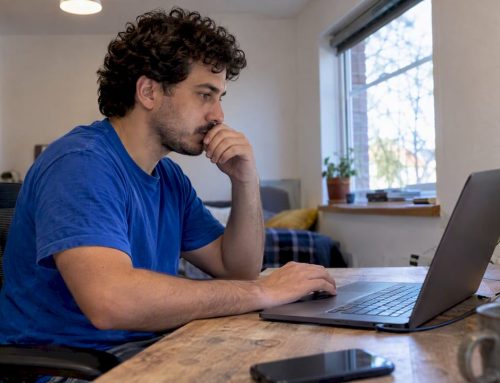
Add a facecam when the tester’s reaction, narration or physical context would speed up reproduction, especially in usability testing and complex multi-step flows. Skip it when the session touches personal data, sensitive documents or anything legally restricted. The upside is faster, richer context for developers; the tradeoff is privacy and accessibility, which both have real compliance obligations attached.
TL;DR:
- Keep clips under roughly 45 seconds when possible, isolate the failure, and pair each with screen footage and a timestamped transcript.
- Before recording, obtain informed consent for both camera and screen capture, and state the retention period in writing or aloud.
- Add synchronized captions to clips shared beyond the testing team; WCAG guidance covers speech, meaningful sounds, and speaker identification when multiple people talk.
- Attach browser, operating system, device, and build details, numbered reproduction steps, the failure timestamp, a transcript excerpt, and relevant console or network logs.
- Blur personal data and background identifiers before sharing clips, limit access by role, set retention periods in advance, and delete recordings after ticket closure.
Table of Contents
- When to include facecam: a decision checklist for QA
- Recording guidance: camera, audio, captions, and privacy
- How to attach, annotate, and store facecam recordings for fast triage
- Wezard’s perspective: running pilots and scaling facecam safely
- What enterprise QA teams get wrong about facecam
- Try a short Wezard pilot to test facecam in your UAT process
- FAQ
- Sources
When to include facecam: a decision checklist for QA
Facecam footage earns its place when it answers a question the screen alone cannot. In usability sessions, a tester’s hesitation, confusion or verbal frustration often explains a failure better than the click trail does. Complex multi-step flows, where a bug only appears after several conditional actions, benefit from narration that explains what the tester expected at each step. Stakeholder demos also gain from facecam, since a human presence makes a recorded walkthrough easier to trust and follow than a silent screen capture.
There are situations where facecam adds risk without adding value. Sessions involving regulated personal data, financial records, health information or anything under a nondisclosure agreement should stay screen-only. Testers working from shared or public spaces, or those uncomfortable being recorded, should never be required to turn a camera on. Legal and compliance teams should set the boundary before testing starts, not after a clip is already stored.
A short checklist keeps the decision consistent across a QA team; consider also an SSL debugging checklist for developers when diagnosing environment- or certificate-related failures encountered during testing.
- Does the bug depend on tester reaction, confusion or verbal context that the screen alone won’t show?
- Is the flow complex enough that narration would cut reproduction time?
- Is personal, financial or confidential data visible on screen or in the background?
- Has the tester given informed consent for video, not just screen capture?
- Is this a one-off exploratory session or a demo meant for wider stakeholder review?
If the answer to the first two questions is yes and the third is no, facecam is almost always worth the extra file size and review time.
Recording guidance: camera, audio, captions, and privacy
Good facecam footage follows a few consistent technical standards, and skipping them turns a useful clip into a liability or a waste of storage.
- Frame the tester’s face and upper shoulders only, with a plain or blurred background, in at least 720p resolution and even, front-facing light.
- Capture audio from a dedicated microphone or headset rather than a laptop’s built-in mic, and mute background notifications before recording starts.
- Keep facecam-plus-screen clips short: isolate the failure moment rather than recording the entire session end to end, and split long sessions into separate clips per bug.
- Add captions to every clip that will be shared outside the immediate testing team, since WCAG guidance on prerecorded captions requires synchronized media to include captions that cover both speech and meaningful non-speech audio, with speaker identification where more than one person is talking.
- Run a short consent script before recording: state that both screen and camera will be captured, confirm the tester agrees, and note the retention period out loud or in writing.
Pro Tip: Keep each clip under roughly 45 seconds where possible; shorter, failure-focused clips get reviewed faster and reproduced more accurately than long unstructured recordings.
Research on this point is specific: an ICSSP 2023 study on GUI test videos found that participants identified more inconsistencies when shown short GUI test videos alongside written specifications than when given text alone, and follow-up experiment materials showed that highlighting the failure moment inside a clip further improved how well stakeholders recognized and understood the issue. We cover clip length and segmentation in more detail in our guide to bug report video length.
Redaction matters as much as capture. Blur any visible personal data in the background before a clip leaves the testing environment, and strip identifying details from filenames. Our accessibility bug report guidance covers how to pair captions and transcripts with recordings so reports stay usable for every reviewer, not just the ones who can watch video with sound on.
How to attach, annotate, and store facecam recordings for fast triage
A facecam clip is only as useful as the context attached to it. Pair it with the screen recording, a transcript of what the tester said and the relevant console or network logs so a developer can reproduce the bug without asking follow-up questions. Our guide on pairing network logs with clips walks through how that combination turns a vague report into a paste-ready ticket.
Timestamp the exact moment the failure occurs inside the clip rather than leaving a reviewer to scrub through the whole recording. A single marked frame, paired with a one-line transcript excerpt at that timestamp, does most of the triage work before a developer even opens the ticket.
Every ticket built from a facecam session should carry a consistent set of fields:
- Environment details: browser, OS, device and build version.
- Numbered reproduction steps, written in plain language.
- The exact timestamp of the failure inside the recording.
- A short transcript excerpt describing what the tester said or expected.
- Any relevant console or network log lines tied to that moment.
Our guide to submitting clear bug reports covers these fields in more depth for teams standardizing their ticket templates.
Storage and access control deserve the same discipline as the recording itself. Facecam footage should sit behind role-based access, with retention periods set in advance and old clips purged automatically once a ticket is closed. Treat it the same way you’d treat any file containing a person’s likeness: least access, shortest retention that still serves the triage process, and no public sharing links.
Wezard’s perspective: running pilots and scaling facecam safely
We built our platform around the same checklist most QA teams eventually land on by trial and error: capture the screen, capture the narration, and manage duplicate reports effectively to keep the backlog clear. That transcription layer supports accessibility by giving reviewers a text version of what was said and helps reduce repetitive tickets. Teams exploring this for the first time can see where facecam fits across different testing scenarios in our UAT use cases overview. A short pilot, scoped to a single product team and a few testing cycles, is usually enough to see whether facecam-enabled reports are cutting time-to-triage before expanding further.
What enterprise QA teams get wrong about facecam

Most teams treat facecam as an all-or-nothing decision: either every session gets recorded on camera, or none do. That’s the wrong frame. The research on GUI test videos backs a narrower claim: short, focused clips that isolate a failure moment help stakeholders understand issues faster than plain text, not that every tester needs to be on camera for every session. The conventional advice to “just turn on the webcam for richer context” skips the real cost, which is consent, redaction and storage discipline, all of which take more work than flipping a toggle.
The reader’s priority should be the checklist, not the camera. Decide per session whether facecam adds something the screen and transcript can’t, write the consent script before the first recording, and build captioning into the workflow from day one instead of retrofitting it later. Teams that do this treat facecam as one input among several, not a replacement for clear reproduction steps and clean logs.
— Marketing
Try a short Wezard pilot to test facecam in your UAT process
If your team is weighing whether facecam footage is worth the overhead, a short pilot answers that faster than a policy debate. Our platform handles the parts that make facecam-enabled reporting sustainable: screen and camera recording together, real-time transcription for accessibility and searchability, and AI duplicate detection that keeps a wave of facecam-tagged tickets from flooding your backlog.
A practical pilot runs for a few weeks with one product team:
- Enable facecam for usability and complex-flow sessions only, per the checklist above.
- Track time-to-triage and duplicate-ticket rate before and after.
- Review transcripts for caption accuracy and reproduction clarity.
- Compare backlog noise against your current baseline after the pilot window closes.
Check current plans on our pricing page to find the tier that matches your testing volume.
FAQ
Does a bug report need facecam footage to be useful?
No, most bug reports are perfectly actionable with just a screen recording, transcript and logs. Facecam adds value mainly in usability testing or complex flows where tester reaction or narration explains the failure better than the screen alone.
Are captions required on facecam bug report videos?
Captions are required for prerecorded synchronized media under WCAG guidance, which covers speech and meaningful non-speech audio along with speaker identification. Any facecam clip shared beyond the immediate tester and reviewer should include captions or a transcript.
How long should a facecam bug report clip be?
Clips work best when they isolate the failure moment rather than capturing an entire session, generally well under a minute. Our clip length guidance covers how to trim and segment longer recordings into actionable pieces.
What should QA teams redact before sharing a facecam recording?
Blur or crop any personal data, documents or identifiable background details visible on screen or behind the tester before the clip leaves the testing environment. Consent should also be confirmed and logged before recording starts, not after.
Can facecam recordings cause duplicate bug tickets?
Facecam footage itself doesn’t cause duplicates, but unstructured clips without timestamps or transcripts make manual triage harder and increase the chance of the same issue being logged twice. Pairing recordings with transcription and automated duplicate detection, the approach we use in our own platform, reduces that risk before tickets reach the backlog.
Sources
- Understanding Success Criterion 1.2.2: Captions (Prerecorded) | WAI | W3C
- Using GUI Test Videos to Obtain Stakeholders’ Feedback (ICSSP 2023)
- Using GUI test videos to obtain stakeholders’ feedback — supplemental materials