
Jira is defined as an agile project management platform that gives teams a single place to plan work, track progress, and ship software. The role of Jira in project management extends far beyond simple task lists. Over 180,000 companies across 190 countries run their workflows through it. That adoption rate signals something real: Jira works for teams that need structure without sacrificing flexibility. It supports Scrum, Kanban, and hybrid workflows out of the box, and it connects to the tools your team already uses every day.
How does Jira support different project management methodologies?
Jira’s core strength is its ability to fit the way your team actually works, not force your team to fit the tool. Whether you run Scrum sprints, a continuous Kanban flow, or a custom hybrid process, Jira has a board type and workflow model for it.
Scrum in Jira
Scrum teams use Jira to manage the full sprint lifecycle. You build a product backlog, drag issues into a sprint, and track progress with a burndown chart that updates in real time. The sprint board shows each issue moving from “To Do” to “In Progress” to “Done,” giving every team member a shared view of the sprint goal. Sprint reviews and retrospectives become easier when the data is already captured.

Kanban in Jira
Kanban boards in Jira focus on continuous delivery rather than time-boxed sprints. The most important Kanban practice is setting work-in-progress (WIP) limits. WIP limits expose bottlenecks early and improve delivery flow. Without them, teams pile work into “In Progress” columns and nothing actually ships. Jira’s cumulative flow diagram shows how work accumulates across columns over time, which makes systemic slowdowns visible before they become crises.
Hybrid and custom workflows
Not every team runs pure Scrum or pure Kanban. Jira lets you define custom workflow states, add transition rules, and set conditions on who can move an issue from one status to another. A product team might use “Design Review” and “Legal Approval” as required stops before “Done.” A DevOps team might add “Deployed to Staging” as a distinct state. These configurations take minutes to set up and save hours of miscommunication.
- Scrum boards work best for teams delivering in fixed two-week cycles with clear sprint goals.
- Kanban boards suit support teams, ops teams, or any team with unpredictable incoming work.
- Custom workflows fit cross-functional teams with approval gates or compliance requirements.
Pro Tip: Start with Jira’s default workflow before customizing. Most teams add complexity too early and spend more time managing the tool than managing the work.
What are the key Agile reports in Jira that improve project tracking?
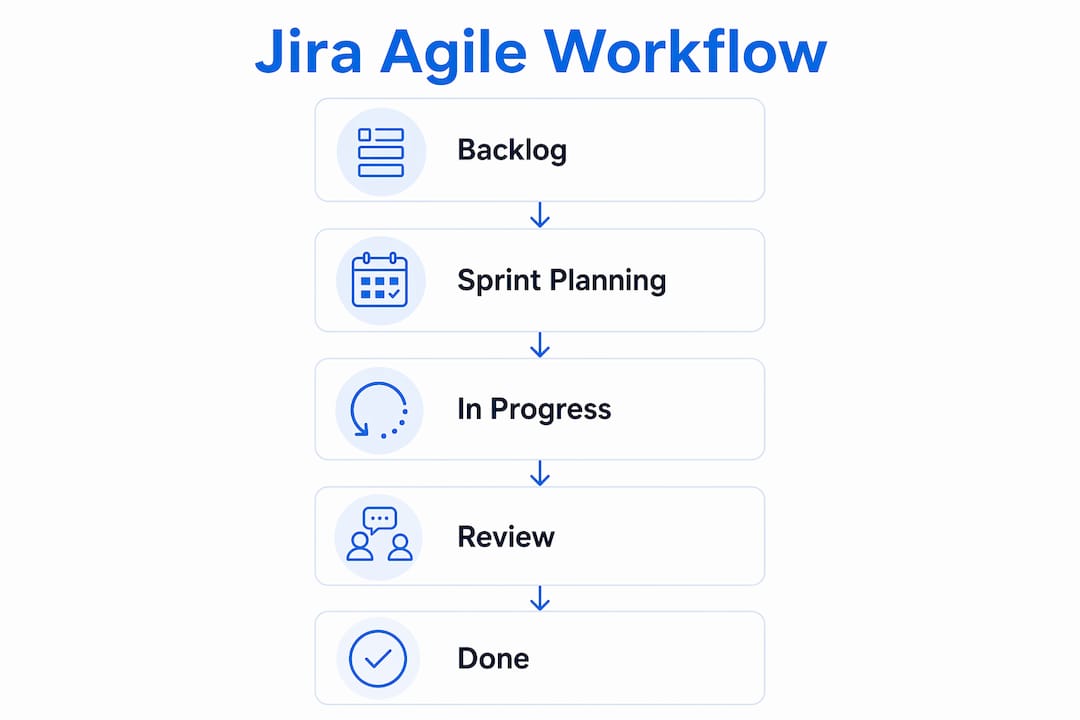
Jira’s Agile reports are the feature most project managers underuse. They turn raw issue data into answers about team performance, delivery speed, and where work gets stuck.
Issue types and how they structure work
Jira organizes work into issue types: epics, stories, tasks, subtasks, and bugs. Epics represent large bodies of work spanning multiple sprints. Stories capture user-facing requirements written from the end user’s perspective. Tasks cover technical work that does not map to a user story. This hierarchy keeps your backlog organized and makes reporting accurate.
The three reports every PM should know
Jira’s Agile reports include burndown charts, velocity charts, and cumulative flow diagrams. Each one answers a different question.
| Report | What it measures | When to use it |
|---|---|---|
| Burndown chart | Remaining work vs. time in a sprint | During a sprint to catch scope creep early |
| Velocity chart | Story points completed per sprint | During sprint planning to set realistic commitments |
| Cumulative flow diagram | Work distribution across workflow states | Ongoing to spot bottlenecks in the delivery pipeline |
The velocity chart is particularly useful for business analysts. It shows how much work a team reliably completes per sprint, which makes capacity planning far more accurate than gut estimates.
Dashboards and custom views
Jira dashboards let you pin gadgets: sprint health, issue statistics, assigned issues, and more. You can build a dashboard for each stakeholder group. Executives see a high-level delivery summary. Developers see their personal queue. QA teams see open bugs by priority. This layered visibility reduces the number of status meetings your team needs to run.
Pro Tip: Build a separate dashboard for your sprint retrospective. Pin the burndown chart, the velocity trend, and a filter showing issues that were added mid-sprint. That data makes retrospectives concrete instead of anecdotal.
How does Jira integrate with development and collaboration tools?
Jira’s integration ecosystem is where the platform earns its place in technical teams. Native integrations with GitHub, Slack, and Microsoft Teams connect the work planned in Jira to the work actually delivered in code and conversation.
Connecting code to tickets
When a developer links a GitHub commit or pull request to a Jira issue, the issue automatically updates with the branch name, commit message, and build status. Project managers can see whether a story is in development, in review, or merged without asking anyone. This closes the gap between what the board says and what is actually happening in the codebase.
Communication tool integrations
Integrating Jira into Slack or Microsoft Teams boosts adoption and reduces overhead. When a Jira notification appears in the channel where your team already works, updating an issue feels natural rather than like extra admin work. You can create Jira issues directly from a Slack message, assign them, and set due dates without opening a browser tab.
CI/CD pipeline connections
Jira connects to CI/CD tools so deployment events update issue statuses automatically. A story marked “In Review” can move to “Deployed to Staging” the moment a pipeline run completes. This removes a whole category of manual status updates from your team’s day.
- Link every pull request to its Jira issue from day one. Retroactive linking is painful and rarely happens.
- Use Slack or Teams notifications for issue assignments, not for every comment. Notification fatigue kills adoption.
- Connect your CI/CD pipeline to Jira before your first sprint. The setup takes under an hour and pays off immediately.
- Review your integration logs monthly. Silent failures are common when API tokens expire.
What are practical tips for using Jira effectively?
Knowing how to use Jira effectively separates teams that get value from it and teams that treat it as a reporting burden. These practices apply whether you are a project manager setting up a new board or a business analyst refining an existing workflow.
-
Remove fields your team does not use. Every unused field on an issue form adds friction. If your team never fills in “Story Points” or “Fix Version,” hide those fields. Jira should feel light, not like a form to fill out before doing real work.
-
Use two-week sprint cadences. Standard Agile practice recommends two-week sprints because they balance meaningful output with fast feedback loops. Shorter sprints create overhead. Longer sprints delay course corrections.
-
Monitor your automation quota. Automation limits on free tiers can halt workflows without warning. Active teams burn through free-tier automation runs quickly. Check your usage monthly and upgrade before you hit the cap, not after a workflow silently stops running.
-
Treat Jira as an execution tool, not a portfolio system. Jira is optimized for team-level execution, not enterprise capacity planning or resource allocation. If you need cross-team roadmaps or financial forecasting, layer a dedicated portfolio tool on top of Jira rather than forcing Jira to do work it was not built for.
-
Run a weekly backlog refinement session. Unrefined backlogs are the most common reason sprint planning takes too long. Spend 30 minutes each week reviewing the top 10 backlog items, adding acceptance criteria, and breaking down oversized stories. Your sprint planning meetings will shrink from two hours to 45 minutes.
Pro Tip: Set a “Definition of Ready” for your backlog items. An issue is only ready for a sprint if it has a clear description, acceptance criteria, and a size estimate. This single practice eliminates most mid-sprint surprises.
Key Takeaways
Jira delivers the most value when teams configure it to match their actual workflow, integrate it with their daily tools, and use its Agile reports to make data-driven decisions rather than relying on status meetings.
| Point | Details |
|---|---|
| Methodology flexibility | Jira supports Scrum, Kanban, and custom workflows, so teams choose the model that fits their delivery style. |
| Agile reports drive decisions | Burndown, velocity, and cumulative flow charts replace guesswork with real delivery data. |
| Integration closes the gap | Connecting Jira to GitHub, Slack, and CI/CD tools links planned work to delivered work automatically. |
| Keep configuration lean | Removing unused fields and workflows reduces friction and improves team adoption. |
| Know Jira’s limits | Jira excels at team-level execution; use dedicated tools for enterprise portfolio management. |
What I’ve learned from watching teams misuse Jira
The most common mistake I see is treating Jira as a reporting tool for management rather than a working tool for the team. When project managers spend more time building dashboards for stakeholders than helping the team refine its backlog, Jira becomes a surveillance system. Teams resent it. Adoption drops. The data becomes unreliable because nobody updates issues honestly.
The teams that get the most out of Jira do the opposite. They configure Jira workflows around how work actually moves, not how management wishes it moved. They keep boards simple enough that a new team member can understand the full workflow in five minutes. They use the velocity chart to push back on unrealistic sprint commitments rather than just accepting whatever stakeholders request.
Jira also shapes team culture in ways most managers do not anticipate. When every piece of work lives in Jira, nothing falls through the cracks. Accountability becomes visible without being punitive. The team can see who is blocked, who is overloaded, and where the sprint is at risk. That transparency, when it is used to help rather than to judge, builds trust faster than any team-building exercise.
The uncomfortable truth is that Jira is only as good as the discipline behind it. The tool does not create good project management habits. It amplifies the habits your team already has.
— Marketing
Wezardapp and Jira: closing the feedback loop
Jira manages your backlog well. The harder problem is what happens before a ticket gets there.

Wezardapp is the only user acceptance testing tool that records your screen, transcribes the issue in real time, and uses AI to detect duplicate tickets before they reach your Jira backlog. Testers stop writing long bug reports. Developers stop triaging duplicates. Project managers get a cleaner backlog with less noise. Wezardapp creates Jira tickets automatically from recorded sessions, so every issue arrives with a screen recording, a transcript, and full context attached. If you want your Jira board to reflect reality, start at the source of the bugs. Learn more about AI-powered bug tracking and how it fits your current workflow.
FAQ
What is the role of Jira in project management?
Jira is an agile project management platform that helps teams plan work, track issues, and manage sprints or continuous delivery workflows. It is used by over 180,000 companies across 190 countries for day-to-day project execution.
How does Jira support agile project management?
Jira provides dedicated Scrum and Kanban boards, sprint planning tools, and Agile reports including burndown charts and velocity charts. These features give teams the structure to run Agile ceremonies and measure delivery performance with real data.
What are the best practices for using Jira in projects?
The most effective practices include keeping workflows lean, using two-week sprint cadences, monitoring automation quotas, and integrating Jira with communication tools like Slack or Microsoft Teams. Jira should serve the team’s daily work, not create extra administrative overhead.
Is Jira suitable for non-technical teams?
Jira works for any team that needs to track work through defined stages, but its default configuration favors software development teams. Non-technical teams get the most value by customizing issue types and workflow states to match their specific process.
What are Jira’s limitations as a project management tool?
Jira is built for team-level execution, not enterprise portfolio management. For cross-team capacity planning, resource allocation, or financial forecasting, teams need to layer a dedicated portfolio tool on top of Jira rather than stretching it beyond its design.