
Create a Jira issue of type Bug, fill in the summary, numbered reproduction steps, environment, expected vs. actual results, severity, and attachments, then assign it or leave it for triage. That is the complete minimum. Every field you skip becomes a question a developer has to ask before they can touch the ticket.
Minimum fields to make a bug ticket actionable:
- Summary: One scannable headline (under 10 words) describing what breaks and where
- Steps to reproduce: Numbered, exact, starting from a clean state
- Expected result: What should happen
- Actual result: What actually happens
- Environment: Browser, OS, app version, device
- Severity: Critical / High / Medium / Low
- Attachments: Screenshot or short screen recording
- Component / Label: Routes the ticket to the right team
- Assignee: Named owner or left blank for triage
Immediate next steps: Open Jira, hit C (the global create shortcut), set Issue Type to Bug, paste your summary, fill the description using the template in Section 4, attach your evidence, tag the component, and click Create. Then use JQL to confirm the ticket appears in your team’s open-bugs filter.
Pro Tip: Wezardapp records your screen and transcribes the issue in real time, then pushes a pre-filled ticket directly to Jira — so the fields above arrive populated, not blank.
Table of Contents
- What is bug tracking, and why do teams use Jira for it?
- How do you create a clear, actionable bug in Jira?
- What fields belong in a Jira bug report template?
- What does a healthy Jira bug lifecycle look like?
- How do automation and developer integrations save triage time?
- How do you track bugs from backlog to release?
- What are the best practices for Jira bug reporting?
- How do screen recording and AI-assisted capture reduce duplicate tickets?
- Key Takeaways
- Why structured reports beat long descriptions every time
- Wezardapp makes Jira bug reporting faster for UAT teams
- Useful sources and further reading
What is bug tracking, and why do teams use Jira for it?
A bug is any deviation between what software is supposed to do and what it actually does. Bug tracking is the practice of capturing, prioritizing, and resolving those deviations in a structured system rather than a Slack thread or spreadsheet.
Jira models bugs as a distinct issue type — separate from Tasks and Stories — with its own fields, workflow, and reporting. That distinction matters in practice. A Story moves through planning and development; a Bug moves through triage, fix, verification, and close. Mixing them in the same workflow creates noise in your velocity metrics and makes release-readiness reporting unreliable.
Key reasons teams choose Jira for bug tracking:
- Integrations: — Native links to Bitbucket, GitHub, CI pipelines, and monitoring tools
Generic task trackers handle the first two points poorly. Jira’s bug-specific fields and workflow schemes are what make it the default choice for software teams that need audit trails and release-gate reporting.
How do you create a clear, actionable bug in Jira?
The goal of every bug ticket is zero follow-up questions. A developer should be able to read it, reproduce the issue on the first try, and start fixing. A standard ticket structure — summary, environment, numbered steps, expected vs. actual, severity, attachments — is what makes that possible.
Creation steps
- Press C anywhere in Jira (or click Create in the top nav)
- Select the correct Project
- Set Issue Type to Bug
- Write a scannable Summary (see format below)
- Fill the Description using the template in Section 4
- Set Priority, Component, Affects Version, and Environment
- Attach your screenshot or recording
- Set Assignee or leave blank for triage
- Click Create
What to write in each field
Summary format: [Component] Short verb phrase describing the failure — for example, [Checkout] Payment button unresponsive after promo code applied. Keep it under 10 words. Anyone scanning a backlog should know exactly what broke.
Description: Use numbered steps starting from a clean, logged-in state. Never write “click around until it breaks.” Developers reproduce bugs from your steps, not from your intuition.
Priority vs. Severity: Priority is about when to fix it (business impact, release risk). Severity is about how bad the failure is (data loss, crash, cosmetic). Fill both. Conflating them is one of the most common triage errors.
Affects Version / Fix Version: Affects Version tells QA which build to test on. Fix Version tells the release manager which sprint or release owns the fix. Both fields feed your release-readiness dashboard.
The Jira issue anatomy — including the Development panel, Activity tab, and History log — gives every stakeholder a full audit trail without a single status meeting.
Pro Tip: Use the keyboard shortcut C to open the create dialog from anywhere in Jira. Pair it with a saved description template (stored in Confluence or a text expander like TextExpander) so reporters paste a pre-structured block and fill in the blanks.
What fields belong in a Jira bug report template?
Atlassian’s bug report template recommends a consistent set of fields that cover everything a developer needs to reproduce and fix an issue. Copy the block below into your Jira description template or Confluence snippet library.
**Summary:** [Component] Short failure description

**Environment:**
- OS / Browser / Device:
- App version / Build:
- Test environment (Staging / Prod):

**Preconditions:**
- User role:
- Required data / state:

**Steps to reproduce:**
1.
2.
3.

**Expected result:**

**Actual result:**

**Severity:** Critical / High / Medium / Low
**Priority:** P1 / P2 / P3 / P4

**Attachments:** [screenshot, recording, logs]

**Links:** [related story, duplicate, blocked-by]

**Reporter:**
Why each field earns its place
| Field | Why it matters |
|---|---|
| Summary | First thing developers and PMs read; drives search and filter accuracy |
| Environment | Eliminates “can’t reproduce” replies caused by version or config differences |
| Preconditions | Sets the exact starting state so steps are repeatable |
| Steps to reproduce | The single highest-leverage field; numbered steps cut resolution time |
| Expected vs. actual | Defines the acceptance bar for the fix |
| Severity | Drives triage priority and SLA clock |
| Attachments | Visual evidence removes ambiguity; recordings show timing and sequence |
| Links | Connects the bug to its parent story, duplicate, or blocking issue |
Pro Tip: Keep your Summary under 60 characters. Longer summaries truncate in board view and backlog filters, which means reporters start writing vague one-liners to fit. Set a team norm and enforce it in your Definition of Ready.
What does a healthy Jira bug lifecycle look like?
A bug that moves from Open straight to Closed without a verification step is a bug waiting to reopen. Best-practice workflows include an explicit verification stage and a reopen loop so defective code cannot be marked done by the developer who fixed it.
Recommended lifecycle:
Open → Triage → In Progress → In Review / Awaiting Verification → Resolved / Verified → Closed
With a Reopened status looping back to In Progress when verification fails.
| Status | Owner | Key condition |
|---|---|---|
| Open | Reporter / Triage lead | Ticket created; awaiting review |
| Triage | QA lead / PM | Severity set, component tagged, Fix Version assigned |
| In Progress | Developer | Fix Version required before transition |
| Awaiting Verification | QA tester | Developer marks resolved; QA must verify on correct build |
| Closed | QA tester | Verified fix on target build |
| Reopened | QA tester | Verification failed; loops to In Progress |
The Awaiting Verification status is the one most teams skip, and it is the one that causes the most reopen cycles. Without it, developers self-certify their fixes and bugs leak into releases. Adding a validator that requires Fix Version before the Resolved transition catches the other common gap: tickets resolved with no target release attached.
Jira workflow elements to configure for this lifecycle: statuses (the states above), transitions (the arrows between them), conditions (who can trigger a transition), validators (required fields before transition), and post-functions (actions after transition, like notifying watchers or auto-assigning).
Triage checklist (run within 48 hours of creation)
- Reproduce the bug on the reported build
- Confirm or adjust Severity
- Tag the correct Component and Label
- Assign Fix Version (current sprint, next release, or backlog)
- Assign to developer or route to triage owner
- Add any missing environment details or reproduction notes
Operational rules that prevent backlog rot:
- Set a 48-hour triage SLA for all new bugs; use Jira automation to flag anything older
- Escalate P1/Critical bugs immediately via a dedicated Slack channel or PagerDuty alert
- Use Labels for cross-cutting concerns (e.g.,
regression,flaky,ux) and Components for ownership routing - Run a weekly 30-minute backlog grooming session to close stale tickets and re-prioritize aging P3s
Track feedback status in Jira alongside bugs so PMs have a single view of what is open, in progress, and verified before a release.
How do automation and developer integrations save triage time?
Manual status updates and assignment emails are where Jira workflows break down. Automation rules and developer integrations keep tickets in sync with code changes without anyone touching the ticket by hand.
Useful automation recipes:
- Auto-transition on PR merge: — When a linked Bitbucket or GitHub PR merges to main, move the bug to Awaiting Verification
Bitbucket and GitHub integration setup:
Connect Jira to Bitbucket or GitHub via the Atlassian Marketplace app. Once linked, developers reference the Jira issue key in their commit messages (git commit -m "PROJ-123 fix null pointer in checkout"). The Development panel on the Jira ticket then shows all linked commits, branches, and PRs automatically.
CI/CD links: Most CI tools (Jenkins, GitHub Actions, CircleCI) support Jira Smart Commits or REST API calls. Trigger a transition to Awaiting Verification when a build passes on the fix branch, and reopen the ticket automatically when a build fails.
Pro Tip: Require Fix Version as a validator on the Resolved transition. Without it, developers close tickets with no release attached, and your release-readiness dashboard becomes meaningless.
How do you track bugs from backlog to release?
JQL is the fastest way to answer “what is blocking this release?” without opening a dozen individual tickets. A handful of saved filters and two or three dashboard widgets give the whole team a live view of bug status.
Essential JQL filters
project = PROJ AND issuetype = Bug AND status != Closed AND priority = Critical— open criticals right nowproject = PROJ AND issuetype = Bug AND fixVersion = "2.4.0" AND status != Closed— unresolved bugs blocking a specific releaseproject = PROJ AND issuetype = Bug AND component = "Checkout" ORDER BY priority ASC— bugs by component for team-level triageproject = PROJ AND issuetype = Bug AND status = Reopened AND updated >= -14d— bugs reopened in the last 14 days (a proxy for verification quality)project = PROJ AND issuetype = Bug AND created >= -7d AND status = Open AND assignee is EMPTY— new, unassigned bugs from the past week
Dashboard widgets that matter
| Widget | What it shows |
|---|---|
| Pie chart by Priority | Proportion of open bugs at each severity level |
| Created vs. Resolved trend | Whether the team is closing bugs faster than they arrive |
| Top Reopeners | Which bugs (or reporters) generate the most reopen cycles |
| Sprint burndown with bug count | How many bugs are open vs. closed within the current sprint |
Weekly stakeholder reports can be exported from a saved filter as a CSV or piped into Confluence via the Jira Issues macro. For automated exports, the Jira REST API (/rest/api/3/search?jql=...) returns JSON that feeds any BI tool or Slack bot.
The Jira project management guide covers how to tie these filters into sprint planning and release gates.
What are the best practices for Jira bug reporting?
The habits below separate teams that ship clean releases from teams that spend every sprint firefighting regressions.
Do:
- One bug per ticket — bundled bugs cannot be assigned, prioritized, or closed independently
- Attach evidence before submitting — a 15-second recording beats three paragraphs of prose
- Write reproduction steps from a clean state, not from wherever you happened to be
- Set Severity and Component on creation, not after triage
- Verify fixes on the exact build specified in Fix Version
Stop doing:
- Vague summaries like “Login broken” or “Page doesn’t load”
- Missing environment details — “latest Chrome” is not an environment
- Guessing root cause in the description — describe symptoms, not theories
- Skipping the Awaiting Verification transition and self-certifying fixes
- Leaving P3 bugs unreviewed for more than two sprints
The single most expensive bug reporting habit is the vague summary. A ticket titled “Checkout issue” will sit in triage longer, get assigned to the wrong person, and generate three comment threads before anyone reproduces it. A ticket titled “[Checkout] Payment button unresponsive after promo code applied on iOS 17 / Safari” gets picked up and fixed. The summary is not a formality — it is the routing mechanism for everything that follows.
For backlog hygiene, set an aging rule: any P3 or P4 bug open for more than 60 days without activity gets reviewed in the next grooming session and either scheduled, downgraded, or closed as Won’t Fix.
Pro Tip: Run a monthly “bug debt” review. Filter for bugs older than 60 days with no Fix Version. Close the ones that no longer reproduce, schedule the ones that do, and delete the duplicates. A clean backlog is faster to triage than a cluttered one.
How do screen recording and AI-assisted capture reduce duplicate tickets?
The most common reason a bug takes three days to fix instead of one is missing context. A developer reads “button doesn’t work,” cannot reproduce it, asks for more info, waits for a response, and the cycle repeats. Screen recordings, automated transcripts, and structured metadata break that loop.
A short recording (10–20 seconds) showing the exact click sequence, the visible error state, and the URL captures more information than any written description. When that recording is paired with a real-time transcript and console log snapshot, the developer has everything needed for root-cause analysis without a single follow-up question.
What to attach to every UAT bug ticket:
- Video clip (10–20 seconds, showing the failure moment)
- Automated transcript of what the tester said or typed
- Console log or network error at the time of failure
- Element selector or XPath of the failing component
- Browser / OS / viewport metadata captured automatically
AI duplicate detection adds another layer. Before a ticket reaches the backlog, an AI model compares the new report against open issues using the transcript, summary, and metadata. If a match exists, the reporter sees it immediately and can link to the existing ticket instead of creating a third report of the same bug.
Wezardapp does exactly this: it records the screen, transcribes the issue in real time, runs duplicate detection, and creates a Jira ticket automatically with the video, transcript, and metadata pre-populated in the correct fields. QA teams running UAT cycles see the biggest gain because non-technical testers no longer need to know which Jira fields to fill.
Pro Tip: Ask testers to narrate while recording — “I clicked the promo code field, typed SAVE10, and the button grayed out.” That narration becomes a searchable transcript, which is what the AI uses to catch duplicates. Silent recordings are harder to match.
Context in bug reports is the difference between a ticket that gets fixed in hours and one that sits in “Need More Info” for a week.
Key Takeaways
Structured Jira bug reports with reproduction steps, environment details, and attached evidence cut resolution time more than any workflow change alone.
| Point | Details |
|---|---|
| Use the standard template | Fill Summary, Steps, Expected/Actual, Environment, Severity, and Attachments on every ticket. |
| Add Awaiting Verification | This single status change prevents developers from self-certifying fixes and reduces reopen cycles. |
| Set a 48-hour triage SLA | Unreviewed bugs lose context fast; automate a flag for anything older than 48 hours. |
| Use JQL saved filters | Track open criticals, release-blocking bugs, and reopened tickets with five core queries. |
| Use Wezardapp for UAT capture | Screen recording, real-time transcription, and AI duplicate detection pre-fill Jira tickets before they reach the backlog. |
Why structured reports beat long descriptions every time
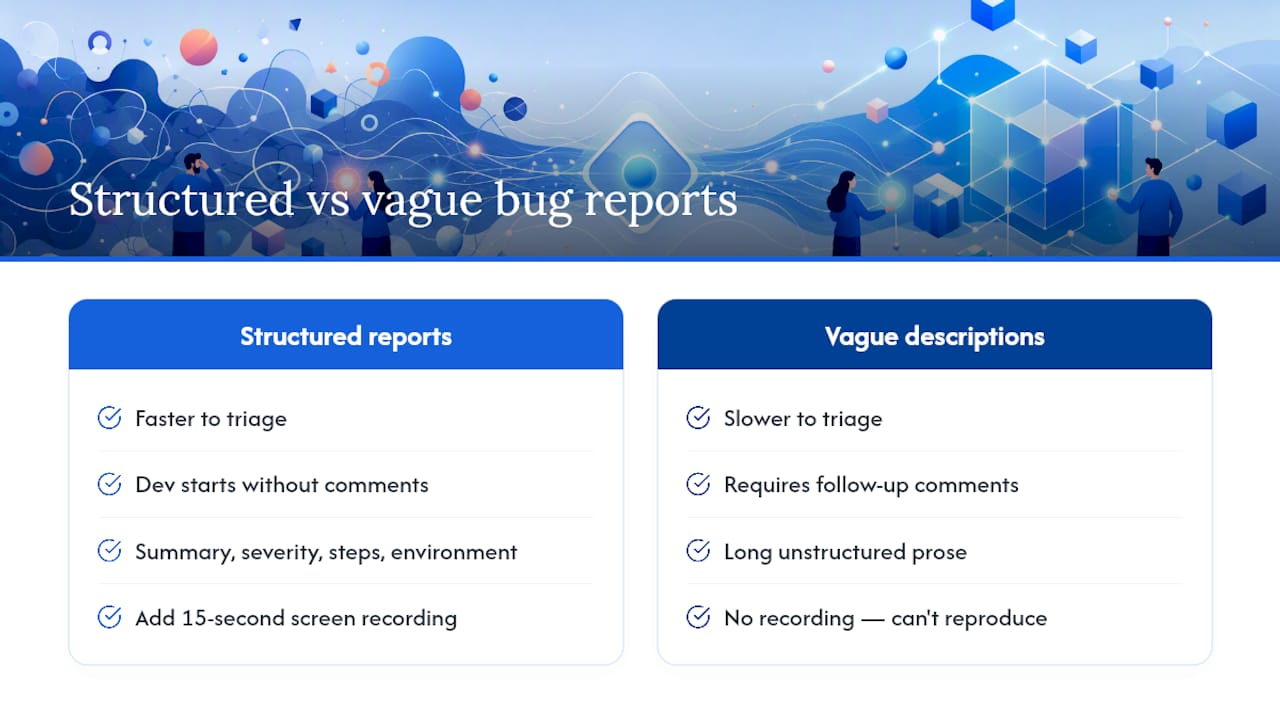
Most teams think their bug reporting problem is volume. It is not. It is signal quality. A backlog of 200 well-structured tickets is faster to triage than 50 vague ones, because every ticket answers the same questions in the same order and developers can start working without a comment thread.
The conventional wisdom says “write more detail.” That is wrong. More prose in the description field does not help if the prose is unstructured. A developer skimming 10 tickets does not read paragraphs — they scan fields. Summary, severity, steps, environment. If those four things are clear, the ticket moves. If they are not, it stalls.
The higher-leverage investment is structure plus context: a consistent template that forces reporters to answer the right questions, paired with a recording that shows what words cannot. Teams that add a 15-second screen recording to their template see fewer “can’t reproduce” replies almost immediately, because the recording answers the timing and sequence questions that written steps miss.
The experiment worth running: pick 20 recent bugs that required follow-up comments before a developer started work. Count how many were missing environment, had a vague summary, or had no recording. The answer is almost always the same. Fix the template, not the volume.
Wezardapp makes Jira bug reporting faster for UAT teams
If your team runs user acceptance testing, the weakest point in your bug reporting process is usually the moment a non-technical tester tries to fill a Jira ticket. They skip the environment field, write a one-line summary, and attach nothing. The developer cannot reproduce it. The ticket stalls.
Wezardapp solves that specific problem. It records the tester’s screen, transcribes the issue in real time, and runs AI duplicate detection before the ticket ever reaches your backlog. The result: a Jira ticket with a video clip, a searchable transcript, browser metadata, and a pre-filled description, created in one click. No Jira training required for the tester.
The Jira integration maps every captured artifact to the right field: video to Attachments, transcript to Description, metadata to Environment. Your developers get the context they need. Your backlog stays clean. And your QA lead stops spending triage time chasing missing screenshots.
If you want to see how it fits your UAT workflow, explore Wezardapp’s use cases or start a trial directly from the site.
Useful sources and further reading
- Bug tracking with Jira | Atlassian
- Bug report template | Atlassian
- Introduction to Jira Work Items | Atlassian
- Jira Bug Tracking Workflow: The Complete 2026 Guide | Process Templates for Jira
- How to Add a Bug in Jira (Step-by-Step Guide)
- Working with issues | Atlassian Confluence