
A defensible accessibility bug report names the barrier in the title, proves it’s reproducible with numbered steps and environment details, states expected versus actual behavior, and attaches evidence like a screenshot or short screen recording. Map the WCAG success criterion when you’re confident, or flag it “needs review” when you’re not. Get the title and repro steps right first. Everything else in the ticket exists to support those two things.
TL;DR:
- Reproduction steps must be specific and detailed, including keystrokes or gestures, to ensure quick and accurate fixes.
- Attaching evidence should include screenshots or videos that highlight focus, motion, or dynamic updates, with timestamps and clear annotations.
- Clearly map the relevant WCAG success criterion only when confident, and use “needs review” for scanner-flagged issues without manual verification.
- Recording the environment details, such as browser, operating system, assistive technology, and device specifics, is critical for reproducibility.
- Follow a structured checklist before submitting, ensuring all fields are complete, impact is well classified, and personal data is redacted to facilitate efficient triage.
Table of Contents
- What Makes Accessibility in Bug Reporting Different From Standard QA
- Anatomy of a Defensible Accessibility Bug Report
- From Capture to Verified Fix: the Bug Lifecycle
- Evidence That Actually Speeds Up Fixes
- WCAG Mapping and Writing Verifiable Acceptance Criteria
- Common Accessibility Reporting Failures and a Pre-Submit Checklist
- Automation and AI Guardrails for Accessibility Reporting
- How to Record Environment and Assistive Technology Details
- Writing About Disability Without Getting It Wrong
- Classifying Impact Across Different Disability Groups
- Working With Developers and Accessibility Specialists on Fixes
- Dealing With Bugs That Only Show Up Sometimes
- A Note From the Wezardapp Team on Reporting That Actually Gets Fixed
- Report, Track, and Close Accessibility Bugs Faster With Wezard
- Sources
What Makes Accessibility in Bug Reporting Different From Standard QA
A regular bug report says the button doesn’t work. An accessibility bug report has to say why it doesn’t work for a specific person using specific technology, and how you know. That extra layer of proof is what separates a ticket a developer can act on from one that sits in the backlog collecting “can’t reproduce” comments.
The core discipline is the same anywhere: document the barrier, not just the symptom. A report that says “screen reader users can’t complete checkout” is a complaint. A report that says “NVDA 2024.5 on Chrome 131 announces the submit button as ‘button’ with no accessible name, so screen reader users can’t tell what action they’re about to take” is a work order. Accessible lays out the core fields that make that jump possible: title, affected page or component, environment, reproduction steps, expected versus actual results, impacted users, and the relevant WCAG criterion.
This matters more than most QA teams realize because accessibility tickets get scrutinized differently. They show up in procurement audits, ADA demand letters, and VPAT reviews. A vague ticket isn’t just annoying for developers, it’s a liability if anyone ever asks “when did you know about this, and what did you do?” Treat every ticket as something that might get read by a lawyer someday, and you’ll write better tickets today.
Anatomy of a Defensible Accessibility Bug Report
Every field in an accessible issue-tracking template earns its place by answering a question someone downstream will ask. Skip a field and you’re guaranteeing a round trip back to the reporter.
- Title: Name the barrier, not the feature. Weak: “Checkout button issue.” Strong: “Checkout submit button has no accessible name for screen reader users.”
- Affected page or component: URL, screen name, or component ID. Don’t make anyone hunt for it.
- Environment: Browser and version, operating system, and assistive technology with its version number.
- Reproduction steps: Numbered, specific, and sequential, including keystrokes or gestures.
- Expected vs. actual results: What should happen per the interface’s own logic or WCAG, and what actually happens.
- Impacted users: Which disability groups hit this barrier, and how badly.
- Evidence: Screenshot, short video, or transcribed assistive technology output.
- Suggested fix: Optional, but useful when the reporter can point to a likely cause.
- Acceptance criteria: The observable behavior that proves the fix worked.
- WCAG mapping: The specific success criterion, or “needs review” if you’re not certain.
Weak repro steps look like “try to check out with a screen reader.” Strong ones look like: “1. Load /checkout. 2. Tab to the submit button. 3. Listen to NVDA’s announcement. 4. Note it says only ‘button.’” That level of detail is what lets a developer reproduce the bug on the first try instead of the third.
These fields also do quiet legal work. A standardized accessibility issues tracker with dated entries, environment specifics, and evidence creates the kind of paper trail that holds up when a customer, auditor, or regulator asks how an organization is tracking and fixing accessibility gaps.
Pro Tip: Write the title last. Once you’ve filled in expected versus actual results, the barrier usually becomes obvious, and the title practically writes itself.
From Capture to Verified Fix: the Bug Lifecycle
A good ticket dies in a bad workflow. Here’s the sequence that keeps accessibility issues moving instead of stalling in someone’s “to investigate” column.
- Intake: Accept findings from manual audits, automated scans, and user reports through one channel. Automated scans alone are not enough. Research on inclusivity debugging found that automated scanning typically detects only a fraction of accessibility problems, so manual testing and user feedback have to fill the rest.
- Label the source: Manual test, automated scan, or user-reported. This affects how much verification the ticket needs before triage trusts it.
- Confirm reproducibility: At least one team member reproduces the issue before it gets flagged high severity. Unconfirmed reports get a “needs verification” tag, not a rejection.
- Separate severity from priority: Severity measures user harm (does this block a task entirely, or just annoy). Priority measures business urgency (is this on the page that drives 80% of conversions). A severe bug on a rarely visited page might still be low priority this sprint.
- Assign to a component owner: Not a generic accessibility backlog, a real owner with sprint capacity.
- Check for duplicates: Distinguish a true duplicate from a “missed reopen,” where an old fix regressed. Research on duplicate bug classification shows these need different handling, since a regression usually means the original fix or its test coverage was incomplete.
- Retest and verify: The original reporter or a peer confirms the fix using the same assistive technology and environment noted in the ticket, then closes it with evidence attached.
Escalate anything that blocks a core task for a large user group straight to a lead, regardless of where it sits in the sprint queue.
Evidence That Actually Speeds Up Fixes
A screenshot works for static visual issues like missing focus indicators. Reach for a short screen recording when the bug involves motion: focus jumping unexpectedly, a modal trapping keyboard focus, or a dynamic region updating without an announcement.
- Capture the keyboard path, not just the end state, so developers see exactly where focus went wrong.
- Include a few lines of transcribed assistive technology output with timestamps rather than a full transcript.
- Highlight the visible focus ring or state change with an arrow or box, since it’s easy to miss in a busy screenshot.
- Strip session tokens, blur account numbers or names, and store attachments in access-controlled ticket systems, never in a public folder.
A visual feedback tool with built-in annotation saves the step of exporting a screenshot to a separate editor just to draw an arrow.
Pro Tip: When recording a screen reader session, verbally narrate the timestamp of the problem out loud as you hit it. Trimming the clip and pointing a developer to the exact second becomes a five-second task instead of a five-minute scrub.

WCAG Mapping and Writing Verifiable Acceptance Criteria
Map a specific WCAG success criterion when you’re confident, such as 4.1.2 Name, Role, Value for a button with no accessible name. When you suspect a violation but haven’t confirmed it against the guideline text, label it “needs review” rather than guessing. A wrong criterion sends developers down the wrong fix path.
- Cite the exact criterion number and name when confirmed, not just “WCAG issue.”
- Use “needs review” for anything based on a scanner flag you haven’t manually verified. Automated results alone shouldn’t be used to assert a WCAG failure without a manual check.
- Write acceptance criteria as user-facing outcomes: “NVDA announces the button’s purpose” beats “add aria-label to
.submit-btn,” which locks the fix to one implementation. - Tie impact statements to severity: “blocks task completion for keyboard-only users” justifies a higher severity than “minor announcement redundancy.”
Common Accessibility Reporting Failures and a Pre-Submit Checklist
Most bad tickets fail in the same handful of ways.
- Titles that name the feature, not the barrier (“Login page bug”).
- Repro steps that skip the exact keystrokes or gestures used.
- Treating a scanner score as proof of a specific WCAG failure.
- Screenshots or recordings that expose real account data or credentials.
- Severity set by gut feeling instead of actual user impact.
Run every ticket through this checklist before you hit submit:
| Check | Why it matters |
|---|---|
| Title names the barrier | Lets triage sort tickets without opening each one |
| Environment fully specified | Prevents “works on my machine” delays |
| Steps are numbered and specific | Cuts reproduction time for developers |
| Expected vs. actual stated | Removes ambiguity about what “fixed” means |
| Impacted users identified | Informs severity and priority |
| Evidence attached | Speeds verification, reduces back and forth |
| WCAG mapped or marked “needs review” | Keeps unconfirmed claims honest |
| PII redacted from attachments | Meets basic security expectations |
| Acceptance criteria are observable | Gives QA something concrete to retest |
| No exact duplicate exists | Saves triage time |
Triage should treat an incomplete user report as a starting point, not a rejection. Add the missing environment note or WCAG mapping during triage rather than bouncing the ticket back to a customer who has no way to supply it.
Automation and AI Guardrails for Accessibility Reporting
Screen recording and real-time transcription remove a lot of the manual reconstruction work that used to eat up a QA tester’s afternoon. Instead of writing repro steps from memory after the fact, the recording captures the exact sequence, and the transcript captures what the assistive technology actually announced, timestamped and searchable.
AI duplicate detection adds a second benefit: fewer near-identical tickets clogging the backlog before they ever reach Jira or Azure DevOps. Platforms that convert findings into prioritized, assigned work with remediation guidance accelerate the whole cycle from capture to verified fix.
None of that replaces judgment. A few guardrails matter regardless of which tool generates the ticket:
- Preserve raw outputs and timestamps, and label whether capture was manual, automated, or AI-assisted.
- Require a human to confirm any WCAG conformance claim before it becomes official documentation.
- Strip credentials, tokens, and personal data before any recording or transcript leaves internal systems.
- Version evidence so a retest can be compared against the original capture, not a re-recorded approximation.
Automation and AI-assisted reporting should never generate conformance claims on their own without that human check.
How to Record Environment and Assistive Technology Details
Environment fields are the first thing developers check when they can’t reproduce a bug, and the first thing missing from a rushed ticket. Record the operating system and version, the browser and its version number, and the specific assistive technology in use, including its version, since behavior shifts noticeably between releases.
Screen reader combinations matter more than most testers assume. NVDA on Firefox behaves differently than NVDA on Chrome for the same page. VoiceOver on Safari has its own quirks entirely separate from VoiceOver on an iPhone versus a Mac. Note the pairing, not just the assistive technology name.
For mobile, capture the device model, OS version, and whether any zoom, magnification, or reduced-motion settings were active, since those settings can change how a bug manifests or whether it manifests at all. For switch access or voice control testing, note the specific input method and any custom vocabulary or grid layout in use.
If the bug only shows up with a particular browser extension or operating system accessibility setting enabled (like Windows High Contrast Mode or macOS Increase Contrast), say so explicitly. That single detail can save a developer hours of guessing why they can’t reproduce something that’s clearly happening on your end.
Writing About Disability Without Getting It Wrong
Language choices in a bug report shape how seriously a barrier gets taken, and how respectfully the affected users get discussed. Describe the barrier and the technology involved, not the person’s diagnosis or a guess at their condition. Write “keyboard-only users cannot access this menu,” not “users with motor disabilities can’t use this,” since keyboard-only navigation applies to far more people than any single diagnostic category, including temporary injuries and people who simply prefer not to use a mouse.
Avoid framing people as the problem. “Screen reader users are confused by this label” puts the fault on the person. “This label is ambiguous when announced by a screen reader” puts the fault where it belongs, on the interface. That small shift in phrasing also tends to produce better fixes, because it keeps attention on the design flaw instead of implying the user needs to adapt.
Skip euphemisms like “differently abled” or “special needs” in tickets. They read as vague and don’t map to any testable outcome. Stick to functional, specific terms: low vision, screen reader user, keyboard-only navigation, switch access, cognitive load. These terms tie directly to testable conditions and specific assistive technologies, which is exactly what a developer needs to reproduce and fix the issue. A design-focused perspective on accessibility and inclusive UX makes a similar case: language that centers the interface, not the user’s body, tends to produce more effective design conversations.
Classifying Impact Across Different Disability Groups
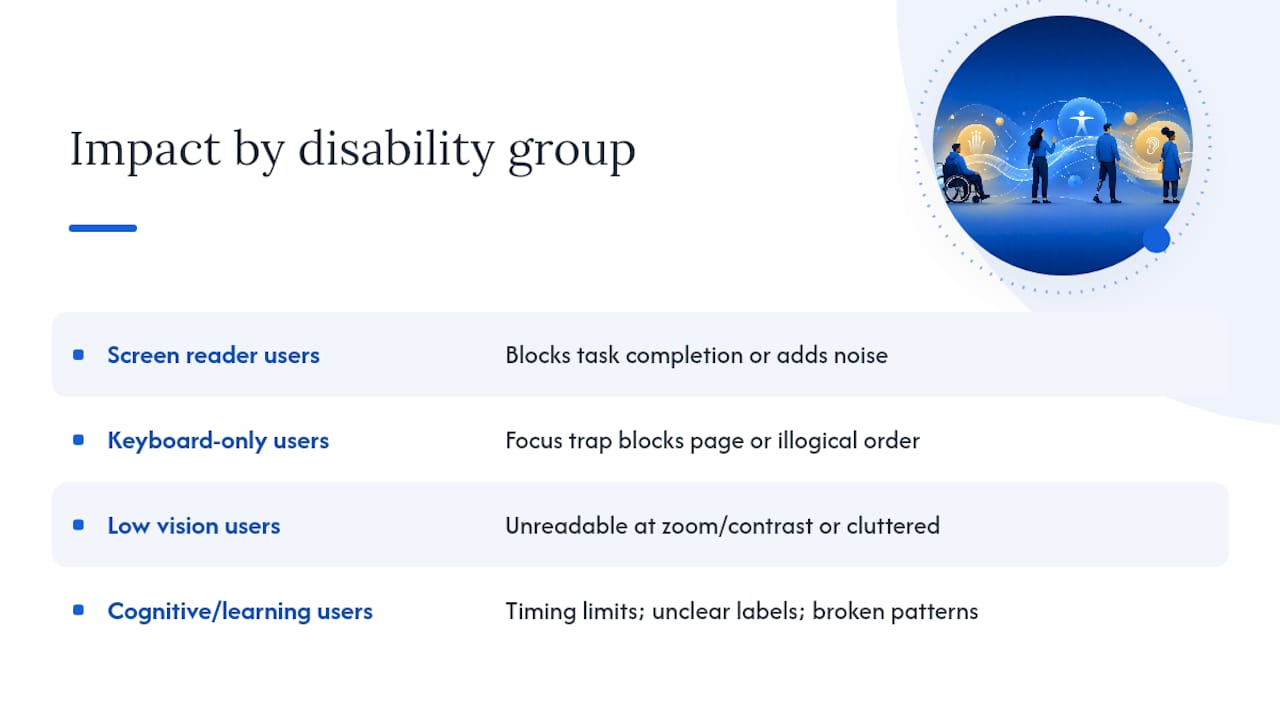
Not every accessibility bug hits every user the same way, and the ticket should say so plainly instead of defaulting to a generic “accessibility issue” label. A missing alt attribute on a decorative image is a minor annoyance for screen reader users. A missing alt attribute on a “submit payment” icon button is a task-blocking failure for the same group.
Break impact down by the assistive technology or condition actually affected, and be specific about severity within that group. For screen reader users, ask whether the barrier blocks task completion entirely or just adds noise to the experience. For keyboard-only users, distinguish between a focus trap that locks someone out of the page entirely and a focus order that’s merely illogical but still navigable. For low vision users relying on zoom or high contrast mode, note whether content becomes unreadable or just visually cluttered. For users with cognitive or learning disabilities, note whether the barrier is a timing constraint, unclear instructions, or an interface pattern that breaks expected conventions.
This breakdown feeds directly into severity. A barrier that fully blocks task completion for any single group deserves high severity even if it affects a smaller percentage of total users than a cosmetic bug affecting everyone. Write the impacted users field as a short, specific sentence, not a checkbox: “Blocks checkout completion for keyboard-only users; screen reader users can complete the task but with a confusing five-step detour.”
Working With Developers and Accessibility Specialists on Fixes
The handoff from tester to developer is where good tickets either pay off or fall apart. A ticket with clear repro steps and evidence lets a developer start fixing immediately instead of pinging the reporter for clarification, which is often where accessibility work gets deprioritized in a busy sprint.
When a fix touches something structurally complex, like a custom widget or a third-party component, loop in an accessibility specialist before the developer settles on an approach. It’s far cheaper to get the ARIA pattern right the first time than to ship a fix that passes a quick manual check but breaks under a different screen reader.
Keep the conversation in the ticket, not in a separate chat thread that disappears. When a developer proposes a fix, ask them to state the expected observable outcome before merging, and compare that against the acceptance criteria the reporter or tester wrote. If a proposed fix technically satisfies the WCAG criterion but still feels awkward to a screen reader user, say so specifically rather than approving it to close the ticket faster. A clear, developer-friendly bug report format makes this back-and-forth shorter because the context is already documented instead of reconstructed from memory in a meeting.
Dealing With Bugs That Only Show Up Sometimes
Intermittent accessibility bugs are some of the hardest tickets to write well, and some of the easiest to get closed as “cannot reproduce” if you’re not careful. A focus management bug that only appears after a specific sequence of interactions, or a screen reader announcement that’s inconsistent across page loads, needs more documentation than a straightforward bug, not less.
Note every variable you can think of: how many times you reproduced it versus how many attempts it took, whether it correlates with page load speed, browser cache state, or a specific prior action. If a bug only appears on the third attempt out of five, say that explicitly instead of implying it’s consistent.
Device-specific issues need the same treatment. A voice control bug that only appears on one specific Android version, or a VoiceOver quirk unique to an older iPhone model, should list the exact hardware and OS version rather than a general “mobile” label. If you have access to more than one device, note whether the bug reproduces across all of them or just one, since that single data point tells a developer whether they’re chasing a code bug or a device-specific rendering quirk.
For genuinely flaky issues, consider labeling the ticket “intermittent, confirmed on [X] of [Y] attempts” rather than downgrading it or letting it sit unconfirmed. That framing keeps the ticket honest about uncertainty without giving triage an excuse to ignore it.
A Note From the Wezardapp Team on Reporting That Actually Gets Fixed
Teams using Wezardapp’s screen recording and transcription tend to see fewer tickets bounce back for missing repro steps, mostly because the recording captures the sequence automatically instead of relying on someone’s memory an hour later. AI duplicate detection has cut down on the same barrier getting logged five different ways by five different testers.
None of this replaces the judgment in this guide. Adapt the template to your own tracker, your own severity scale, and your own team’s shorthand. We’d rather you steal the parts that work than adopt the whole thing wholesale.
— Marketing
Report, Track, and Close Accessibility Bugs Faster With Wezard
Everything in this template still depends on someone writing clear steps, capturing the right environment details, and attaching usable evidence, which is exactly the part that eats up tester time. Wezardapp handles that groundwork automatically: it records the screen during testing, transcribes the issue in real time so repro steps and assistive technology output get written down as they happen, and flags likely duplicate tickets with AI before they ever land in your Jira or Azure DevOps backlog.
For accessibility testing specifically, that means less time reconstructing what happened after the fact and more time on the parts of a ticket that need a human judgment call, like WCAG mapping and impact statements. Teams get evidence developers can act on immediately instead of a vague description that triggers three rounds of clarifying questions. If you’re running structured UAT cycles and want a workflow built around defined acceptance criteria rather than scattered spreadsheets, start a trial and see how your first batch of tickets compares to what you’re logging today.
Sources
- Accessible
- ACCESSIBILITY.md — Accessibility bug reporting best practices
- ICSE 2022 — Why/Where/Fix inclusivity debugging study
- Harvard DAS — Template for reporting accessibility issues